Laravel Cloud offers a fully managed WebSocket infrastructure powered by Laravel Reverb clusters. Laravel Reverb is a Pusher-compatible WebSocket server that supports private channels, presence channels, client events, and more.Laravel and Symfony applications can connect to Reverb out of the box, and you may use Pusher’s SDKs to connect from PHP, JavaScript, Python, Go, Ruby, and Java applications.You can create Laravel Reverb powered WebSocket clusters directly from the Laravel Cloud dashboard, without an external account, and attach them to your application’s environments.
Laravel Reverb is the open source, high-performance WebSocket server that powers Laravel Cloud’s WebSocket clusters. Because Reverb speaks the Pusher protocol, it can provide features like private and presence channels to any application with a Pusher-compatible client.When you run managed Laravel Reverb on Laravel Cloud, Laravel Cloud provisions and manages your Reverb clusters for you. You don’t need to set up and maintain a scalable, high-availability WebSocket server yourself.See the pricing docs for details on concurrent connections, limitations, and pricing.
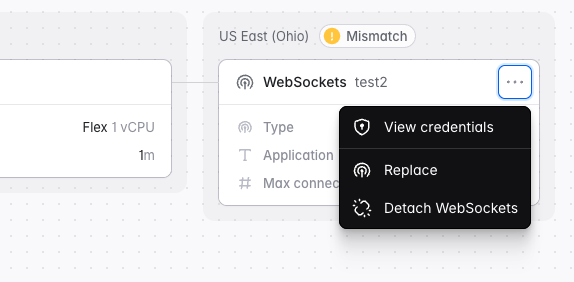
To create a Laravel Reverb powered WebSocket cluster, go to your organization’s Resources page, click the WebSockets tab, then click + New WebSocket cluster. Laravel Cloud prompts you to select a region and the maximum number of concurrent connections your cluster needs to handle.Laravel Cloud automatically creates a default WebSocket application for you called production. To attach it to an environment, go to your application canvas and click Add resource > WebSockets. WebSocket applications let you segment and share your cluster capacity across multiple applications and environments.After you attach the WebSocket application to the environment, redeploy your application for the changes to take effect.
Laravel Cloud automatically injects the Reverb environment variables needed by your application, including the frontend variables required by the Laravel Echo JavaScript client. No manual configuration is required.
Laravel Cloud’s WebSocket clusters use the Pusher protocol, which is compatible with any Pusher-protocol client library. Make sure your application has the required packages installed:
You can then inject Pusher\Pusher into any service or controller through autowiring.REVERB_APP_KEY and REVERB_HOST are safe to expose to the browser. For example, you can render them into your frontend templates for the JavaScript client. REVERB_APP_SECRET is for server-side authentication only, so never expose it publicly.Laravel Cloud automatically allows origins from attached environments. If your frontend is hosted elsewhere, add its URL (for example, https://frontend.example.com) to the WebSocket application’s Allowed origins.
Make sure your application has Pusher’s Node.js HTTP SDK installed:
npm install pusher
Laravel Cloud automatically injects the following variables when you attach a WebSocket application to your environment:
You may then use Pusher’s HTTP SDKs to publish events from your server and its WebSocket SDKs to receive them. For examples in each language, check out the Pusher SDKs documentation.
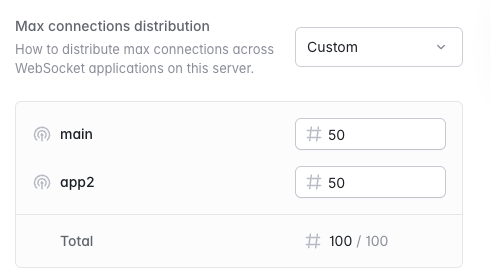
You can edit and resize your WebSocket cluster from your organization’s Resources page. Go to WebSocket clusters and click the … icon on your cluster, then click Edit settings.You can use a single WebSocket cluster across multiple applications by splitting the maximum concurrent connections you have provisioned to your cluster across multiple WebSocket applications.
You can choose an even distribution or manually configure a custom split.
To view your WebSocket metrics, such as connection count and message rate, navigate to Organization > Resources > WebSockets, click your Reverb cluster, and review the Metrics section. You can also select … > View metrics on the cluster card to jump directly to this section.Use the application selector in the Metrics section to view All applications or an individual application. Use the time range selector to adjust the period shown.
You may delete a WebSocket cluster from your organization’s Resources page. Navigate to the WebSockets tab and click the … icon for the cluster you would like to delete. Then, click Delete cluster.
If you don’t want to use Laravel Reverb powered WebSocket clusters, you can pair Laravel Cloud with an external WebSocket provider like Pusher or Ably. Both are compatible with Laravel event broadcasting and Laravel Echo. However, you will need to manage your WebSocket infrastructure and billing outside of Laravel Cloud, and you will need to manage your environment variables manually.
Was this page helpful?
{"docsConfig":{"theme":"mint","$schema":"https://mintlify.com/docs.json","name":"Laravel Cloud","colors":{"primary":"#0057FF","light":"#71A8FF","dark":"#0057FF"},"logo":{"light":"https://mintcdn.com/cloud/MkfTsQSKGENWqY-2/logo/laravel-logo-light.png?fit=max\u0026auto=format\u0026n=MkfTsQSKGENWqY-2\u0026q=85\u0026s=f508d8e9c4e3c842e83d055cc376daa1","dark":"https://mintcdn.com/cloud/MkfTsQSKGENWqY-2/logo/laravel-logo-dark.png?fit=max\u0026auto=format\u0026n=MkfTsQSKGENWqY-2\u0026q=85\u0026s=fcfe00a4914f5e3ad791b606c3e75795","href":"https://cloud.laravel.com/"},"favicon":"https://mintcdn.com/cloud/83RcCEaWR6PzmMFO/favicons/favicon-dark.png?fit=max\u0026auto=format\u0026n=83RcCEaWR6PzmMFO\u0026q=85\u0026s=edd5608e08efe6ae6a4ca1b44232d2af","navbar":{"links":[],"primary":{"type":"button","label":"Get Started","href":"https://cloud.laravel.com"}},"footer":{"socials":{"x":"https://x.com/laravel","github":"https://github.com/laravel","discord":"https://discord.gg/laravel","youtube":"https://www.youtube.com/laravelphp"}},"seo":{"metatags":{"robots":"noindex"}},"integrations":{"fathom":{"siteId":"KZRWMQWT"}},"banner":{"content":"Deploy Next and Nuxt frontends alongside your Laravel apps, all from one unified platform. \u003ca href='https://laravel.com/blog/deploy-nextjs-and-nuxt-apps-on-laravel-cloud'>Learn more →\u003c/a>","dismissible":true},"contextual":{"options":["copy","chatgpt","claude","cursor","vscode"],"display":"header"},"styling":{"latex":false},"navigation":{"global":{"anchors":[{"anchor":"Community","icon":"discord","href":"https://discord.gg/laravel"}]},"pages":[]}},"deployment":{"deploymentMetadataValue":{"subdomain":"cloud","hasAudioNarration":false,"actualSubdomain":"cloud","customDomains":["cloud.laravel.com"],"gitSource":{"type":"github","owner":"laravel","repo":"cloud-docs","deployBranch":"main","contentDirectory":"","isPrivate":true,"mountPath":"","label":""},"chroma":{"liveDeploymentHistoryId":"6ae8a8476bec035f345a037a","collectionId":"fd9a4345-b3eb-4dc3-ba38-99dcf67f5dbb","schemaVersion":"v3","latestBuiltDeploymentHistoryId":"6ae8a8476bec035f345a037a"},"feedback":{"thumbs":true},"entitlements":{"AI_CHAT":{"status":"ENABLED"},"REMOVE_BRANDING":{"status":"ENABLED"},"CONTEXTUAL_FEEDBACK":{"status":"ENABLED"},"CODE_SNIPPET_FEEDBACK":{"status":"ENABLED"},"WEB_MCP":{"status":"ENABLED"},"NARRATION":{"status":"ENABLED"}},"buildId":"6ae8a8476bec035f345a037a","clientVersion":"0.0.4044","searchFilterCounts":[{"language":"default","tag":"API","count":130},{"language":"default","tag":"Endpoints","count":126},{"language":"default","tag":"Documentation","count":60},{"language":"default","tag":"Knowledge Base","count":21},{"language":"default","tag":"Basics","count":17},{"language":"default","tag":"Environments","count":15},{"language":"default","tag":"Instances","count":14},{"language":"default","tag":"Private Cloud","count":10},{"language":"default","tag":"Caches","count":9},{"language":"default","tag":"Deploy guides","count":8}]},"assistantConfig":{"enableAskAiButton":true,"enableAskAiSearchBar":false,"deflection":{"enabled":false,"showHelpButton":false}},"basePath":"/cloud/docs","hasChatPermissions":true,"hasWebMcpPermissions":true,"toggles":[{"name":"kill-isr","enabled":true,"variant":{"name":"disabled","enabled":false,"feature_enabled":true},"impressionData":false},{"name":"agent-mintlify-slack","enabled":true,"variant":{"name":"disabled","enabled":false,"feature_enabled":true},"impressionData":false},{"name":"agent-integrations-settings","enabled":true,"variant":{"name":"disabled","enabled":false,"feature_enabled":true},"impressionData":false},{"name":"automations-pr-grouping","enabled":true,"variant":{"name":"disabled","enabled":false,"feature_enabled":true},"impressionData":false},{"name":"custom-prefix","enabled":true,"variant":{"name":"disabled","enabled":false,"feature_enabled":true},"impressionData":false},{"name":"analytics-v7","enabled":true,"variant":{"name":"disabled","enabled":false,"feature_enabled":true},"impressionData":false},{"name":"user-flows-analytics","enabled":true,"variant":{"name":"disabled","enabled":false,"feature_enabled":true},"impressionData":false},{"name":"no-publish-flow","enabled":true,"variant":{"name":"disabled","enabled":false,"feature_enabled":true},"impressionData":false},{"name":"workos-onboarding","enabled":true,"variant":{"name":"disabled","enabled":false,"feature_enabled":true},"impressionData":false},{"name":"llms-txt-v2","enabled":true,"variant":{"name":"disabled","enabled":false,"feature_enabled":true},"impressionData":false},{"name":"snapshot-serving-live","enabled":true,"variant":{"name":"disabled","enabled":false,"feature_enabled":true},"impressionData":false},{"name":"stripTemperatureMiddleware","enabled":true,"variant":{"name":"disabled","enabled":false,"feature_enabled":true},"impressionData":false},{"name":"support-platform-pylon-zendesk","enabled":true,"variant":{"name":"disabled","enabled":false,"feature_enabled":true},"impressionData":false},{"name":"snapshot-serving","enabled":true,"variant":{"name":"disabled","enabled":false,"feature_enabled":true},"impressionData":false},{"name":"instant-rollback","enabled":true,"variant":{"name":"disabled","enabled":false,"feature_enabled":true},"impressionData":false},{"name":"granular-notifications-server","enabled":true,"variant":{"name":"disabled","enabled":false,"feature_enabled":true},"impressionData":false},{"name":"granular-notifications","enabled":true,"variant":{"name":"disabled","enabled":false,"feature_enabled":true},"impressionData":false},{"name":"automations-fable","enabled":true,"variant":{"name":"disabled","enabled":false,"feature_enabled":true},"impressionData":false},{"name":"fixed-ai-action-pricing","enabled":true,"variant":{"name":"disabled","enabled":false,"feature_enabled":true},"impressionData":false},{"name":"automation-resolve-merge-conflict","enabled":true,"variant":{"name":"disabled","enabled":false,"feature_enabled":true},"impressionData":false},{"name":"scoped-publishing","enabled":true,"variant":{"name":"disabled","enabled":false,"feature_enabled":true},"impressionData":false},{"name":"mintql","enabled":true,"variant":{"name":"disabled","enabled":false,"feature_enabled":true},"impressionData":false},{"name":"page-level-analytics","enabled":true,"variant":{"name":"disabled","enabled":false,"feature_enabled":true},"impressionData":false},{"name":"editor-version-history-v2","enabled":true,"variant":{"name":"disabled","enabled":false,"feature_enabled":true},"impressionData":false},{"name":"billing-page-v2","enabled":true,"variant":{"name":"disabled","enabled":false,"feature_enabled":true},"impressionData":false},{"name":"full-page-search","enabled":true,"variant":{"name":"disabled","enabled":false,"feature_enabled":true},"impressionData":false},{"name":"workspace-projects","enabled":true,"variant":{"name":"disabled","enabled":false,"feature_enabled":true},"impressionData":false},{"name":"assistant-v5","enabled":true,"variant":{"name":"disabled","enabled":false,"feature_enabled":true},"impressionData":false},{"name":"byok-sep-25","enabled":true,"variant":{"name":"disabled","enabled":false,"feature_enabled":true},"impressionData":false},{"name":"fork-pr-previews","enabled":true,"variant":{"name":"disabled","enabled":false,"feature_enabled":true},"impressionData":false},{"name":"revalidation-jwt","enabled":true,"variant":{"name":"disabled","enabled":false,"feature_enabled":true},"impressionData":false},{"name":"vite-origin","enabled":true,"variant":{"name":"disabled","enabled":false,"feature_enabled":true},"impressionData":false},{"name":"billing-updated-9-15","enabled":true,"variant":{"name":"disabled","enabled":false,"feature_enabled":true},"impressionData":false},{"name":"workos-sso-scim","enabled":true,"variant":{"name":"disabled","enabled":false,"feature_enabled":true},"impressionData":false},{"name":"hobby-abuse-scan","enabled":true,"variant":{"name":"disabled","enabled":false,"feature_enabled":true},"impressionData":false},{"name":"dashboard-inbox","enabled":true,"variant":{"name":"disabled","enabled":false,"feature_enabled":true},"impressionData":false},{"name":"workos-signup","enabled":true,"variant":{"name":"disabled","enabled":false,"feature_enabled":true},"impressionData":false},{"name":"turbopuffer-dual-write","enabled":true,"variant":{"name":"disabled","enabled":false,"feature_enabled":true},"impressionData":false},{"name":"workos-enabled","enabled":true,"variant":{"name":"disabled","enabled":false,"feature_enabled":true},"impressionData":false},{"name":"approve-review-flow","enabled":true,"variant":{"name":"disabled","enabled":false,"feature_enabled":true},"impressionData":false},{"name":"sso-setup-deadline-banner","enabled":true,"variant":{"name":"disabled","enabled":false,"feature_enabled":true},"impressionData":false}],"googleFontsInlined":false},"customCss":[{"filePath":"styles.css","content":"/* latin-ext */\n@font-face {\n font-family: 'Instrument Sans';\n font-style: normal;\n font-weight: 400 500;\n font-stretch: 100%;\n font-display: swap;\n src: url(/cloud/docs/_mintlify/assets/fonts/google/s/instrumentsans/v4/pxiTypc9vsFDm051Uf6KVwgkfoSxQ0GsQv8ToedPibnr0She1YmV.woff2) format('woff2');\n unicode-range: U+0100-02BA, U+02BD-02C5, U+02C7-02CC, U+02CE-02D7, U+02DD-02FF, U+0304, U+0308, U+0329, U+1D00-1DBF, U+1E00-1E9F, U+1EF2-1EFF, U+2020, U+20A0-20AB, U+20AD-20C4, U+2113, U+2C60-2C7F, U+A720-A7FF;\n}\n/* latin */\n@font-face {\n font-family: 'Instrument Sans';\n font-style: normal;\n font-weight: 400 500;\n font-stretch: 100%;\n font-display: swap;\n src: url(/cloud/docs/_mintlify/assets/fonts/google/s/instrumentsans/v4/pxiTypc9vsFDm051Uf6KVwgkfoSxQ0GsQv8ToedPibnr0SZe1Q.woff2) format('woff2');\n unicode-range: U+0000-00FF, U+0131, U+0152-0153, U+02BB-02BC, U+02C6, U+02DA, U+02DC, U+0304, U+0308, U+0329, U+2000-206F, U+20AC, U+2122, U+2191, U+2193, U+2212, U+2215, U+FEFF, U+FFFD;\n}\n/* cyrillic-ext */\n@font-face {\n font-family: 'Geist Mono';\n font-style: normal;\n font-weight: 300 600;\n font-display: swap;\n src: url(/cloud/docs/_mintlify/assets/fonts/google/s/geistmono/v6/or3nQ6H-1_WfwkMZI_qYFrodmgPn.woff2) format('woff2');\n unicode-range: U+0460-052F, U+1C80-1C8A, U+20B4, U+2DE0-2DFF, U+A640-A69F, U+FE2E-FE2F;\n}\n/* cyrillic */\n@font-face {\n font-family: 'Geist Mono';\n font-style: normal;\n font-weight: 300 600;\n font-display: swap;\n src: url(/cloud/docs/_mintlify/assets/fonts/google/s/geistmono/v6/or3nQ6H-1_WfwkMZI_qYFrMdmgPn.woff2) format('woff2');\n unicode-range: U+0301, U+0400-045F, U+0490-0491, U+04B0-04B1, U+2116;\n}\n/* symbols2 */\n@font-face {\n font-family: 'Geist Mono';\n font-style: normal;\n font-weight: 300 600;\n font-display: swap;\n src: url(/cloud/docs/_mintlify/assets/fonts/google/s/geistmono/v6/or3nQ6H-1_WfwkMZI_qYFg08vz7ehw.woff2) format('woff2');\n unicode-range: U+2000-2001, U+2004-2008, U+200A, U+23B8-23BD, U+2500-259F;\n}\n/* vietnamese */\n@font-face {\n font-family: 'Geist Mono';\n font-style: normal;\n font-weight: 300 600;\n font-display: swap;\n src: url(/cloud/docs/_mintlify/assets/fonts/google/s/geistmono/v6/or3nQ6H-1_WfwkMZI_qYFrgdmgPn.woff2) format('woff2');\n unicode-range: U+0102-0103, U+0110-0111, U+0128-0129, U+0168-0169, U+01A0-01A1, U+01AF-01B0, U+0300-0301, U+0303-0304, U+0308-0309, U+0323, U+0329, U+1EA0-1EF9, U+20AB;\n}\n/* latin-ext */\n@font-face {\n font-family: 'Geist Mono';\n font-style: normal;\n font-weight: 300 600;\n font-display: swap;\n src: url(/cloud/docs/_mintlify/assets/fonts/google/s/geistmono/v6/or3nQ6H-1_WfwkMZI_qYFrkdmgPn.woff2) format('woff2');\n unicode-range: U+0100-02BA, U+02BD-02C5, U+02C7-02CC, U+02CE-02D7, U+02DD-02FF, U+0304, U+0308, U+0329, U+1D00-1DBF, U+1E00-1E9F, U+1EF2-1EFF, U+2020, U+20A0-20AB, U+20AD-20C4, U+2113, U+2C60-2C7F, U+A720-A7FF;\n}\n/* latin */\n@font-face {\n font-family: 'Geist Mono';\n font-style: normal;\n font-weight: 300 600;\n font-display: swap;\n src: url(/cloud/docs/_mintlify/assets/fonts/google/s/geistmono/v6/or3nQ6H-1_WfwkMZI_qYFrcdmg.woff2) format('woff2');\n unicode-range: U+0000-00FF, U+0131, U+0152-0153, U+02BB-02BC, U+02C6, U+02DA, U+02DC, U+0304, U+0308, U+0329, U+2000-206F, U+20AC, U+2122, U+2191, U+2193, U+2212, U+2215, U+FEFF, U+FFFD;\n}\nbody{font-family:\"Instrument Sans\";font-weight:400}h1,h2,h3,h4{font-family:\"Instrument Sans\"!important;letter-spacing:-.025em!important}code,pre{font-family:'Geist Mono',ui-monospace,SFMono-Regular,Menlo,Monaco,Consolas,'Liberation Mono','Courier New',monospace}.font-semibold,b,h1,h2,h3,h4,strong{font-weight:500!important}.prose :where(a):not(:where([class~=not-prose],[class~=not-prose] *)){font-weight:500!important;color:rgb(var(--primary))!important}.dark .prose :where(a):not(:where([class~=not-prose],[class~=not-prose] *)){color:rgb(var(--primary-light))!important}.table-auto{table-layout:auto}table.table-fixed{table-layout:fixed!important}table{table-layout:auto!important;display:table}th{text-align:left}td>p.icon{margin:0}.pr-16{padding-right:4em}.max-w-none{max-width:none!important}.align-top{vertical-align:top}.italic{font-style:italic}.pr-20{padding-right:5rem}.max-h-50vh{max-height:50vh}.select-arrow{background-image:url(\"data:image/svg+xml,%3csvg xmlns='http://www.w3.org/2000/svg' fill='none' viewBox='0 0 20 20'%3e%3cpath stroke='%236b7280' stroke-linecap='round' stroke-linejoin='round' stroke-width='1.5' d='M6 8l4 4 4-4'/%3e%3c/svg%3e\");background-size:1.5em 1.5em;background-position:right .5rem center;background-repeat:no-repeat}#banner a{color:rgb(var(--white))!important;white-space:nowrap}#banner>div>p{white-space:normal;padding-top:.125rem;padding-bottom:.125rem;overflow:hidden;display:-webkit-box;-webkit-box-orient:vertical;line-clamp:3;-webkit-line-clamp:3}#banner:has(>button){padding-right:2.5rem}@media screen and (min-width:768px){#banner{height:auto}#banner:has(>button){padding-left:2.5rem}}#topbar-cta-button a>span:first-child{background-color:rgb(22 25 30)}.dark #topbar-cta-button a>span:first-child{background-color:rgb(255 255 255)}.dark #topbar-cta-button a,.dark #topbar-cta-button a *{color:rgb(22 25 30)!important}"}],"page":{"pagePath":"resources/websockets","slug":"/resources/websockets","pageMetadata":{"title":"Laravel Cloud WebSockets","sidebarTitle":"WebSockets","description":"Fully managed WebSocket clusters.","href":"/resources/websockets"},"description":{"compiledSource":"\"use strict\";\nconst {jsx: _jsx} = arguments[0];\nconst {useMDXComponents: _provideComponents} = arguments[0];\nfunction _createMdxContent(props) {\n const _components = {\n p: \"p\",\n ..._provideComponents(),\n ...props.components\n };\n return _jsx(_components.p, {\n children: \"Fully managed WebSocket clusters.\"\n });\n}\nfunction MDXContent(props = {}) {\n const {wrapper: MDXLayout} = {\n ..._provideComponents(),\n ...props.components\n };\n return MDXLayout ? _jsx(MDXLayout, {\n ...props,\n children: _jsx(_createMdxContent, {\n ...props\n })\n }) : _createMdxContent(props);\n}\nreturn {\n default: MDXContent\n};\n","frontmatter":{},"scope":{}},"pageType":"default","mdx":{"mdxSource":{"compiledSource":"\"use strict\";const{Fragment:_Fragment,jsx:_jsx,jsxs:_jsxs}=arguments[0];const{useMDXComponents:_provideComponents}=arguments[0];function _createMdxContent(props){const _components={a:`a`,code:`code`,p:`p`,pre:`pre`,span:`span`,strong:`strong`,..._provideComponents(),...props.components},{CodeBlock,Frame,Heading,OptimizedImage,Tab,Tabs,Warning}=_components;if(!CodeBlock)_missingMdxReference(`CodeBlock`,true);if(!Frame)_missingMdxReference(`Frame`,true);if(!Heading)_missingMdxReference(`Heading`,true);if(!OptimizedImage)_missingMdxReference(`OptimizedImage`,true);if(!Tab)_missingMdxReference(`Tab`,true);if(!Tabs)_missingMdxReference(`Tabs`,true);if(!Warning)_missingMdxReference(`Warning`,true);return _jsxs(_Fragment,{children:[_jsx(Heading,{level:`2`,id:`introduction`,children:`Introduction`}),`\n`,_jsxs(_components.p,{children:[`Laravel Cloud offers a fully managed WebSocket infrastructure powered by `,_jsx(_components.a,{href:`https://laravel.com/docs/reverb`,children:`Laravel Reverb`}),` clusters. Laravel Reverb is a Pusher-compatible WebSocket server that supports private channels, presence channels, client events, and more.`]}),`\n`,_jsxs(_components.p,{children:[`Laravel and Symfony applications can connect to Reverb out of the box, and you may use `,_jsx(_components.a,{href:`/resources/websockets/pusher`,children:`Pusher’s SDKs`}),` to connect from PHP, JavaScript, Python, Go, Ruby, and Java applications.`]}),`\n`,_jsx(_components.p,{children:`You can create Laravel Reverb powered WebSocket clusters directly from the Laravel Cloud dashboard, without an external account, and attach them to your application’s environments.`}),`\n`,_jsx(Heading,{level:`2`,id:`laravel-reverb`,children:`Laravel Reverb`}),`\n`,_jsxs(_components.p,{children:[_jsx(_components.a,{href:`https://reverb.laravel.com/`,children:`Laravel Reverb`}),` is the open source, high-performance WebSocket server that powers Laravel Cloud’s WebSocket clusters. Because Reverb speaks the Pusher protocol, it can provide features like private and presence channels to any application with a Pusher-compatible client.`]}),`\n`,_jsx(_components.p,{children:`When you run managed Laravel Reverb on Laravel Cloud, Laravel Cloud provisions and manages your Reverb clusters for you. You don’t need to set up and maintain a scalable, high-availability WebSocket server yourself.`}),`\n`,_jsxs(_components.p,{children:[`See the `,_jsx(_components.a,{href:`/pricing#laravel-reverb`,children:`pricing docs`}),` for details on concurrent connections, limitations, and pricing.`]}),`\n`,_jsx(Heading,{level:`3`,id:`creating-clusters`,children:`Creating clusters`}),`\n`,_jsxs(_components.p,{children:[`To create a Laravel Reverb powered WebSocket cluster, go to your organization’s `,_jsx(_components.strong,{children:`Resources`}),` page, click the `,_jsx(_components.strong,{children:`WebSockets`}),` tab, then click `,_jsx(_components.strong,{children:`+ New WebSocket cluster`}),`. Laravel Cloud prompts you to select a region and the maximum number of concurrent connections your cluster needs to handle.`]}),`\n`,_jsxs(_components.p,{children:[`Laravel Cloud automatically creates a default WebSocket application for you called `,_jsx(_components.code,{children:`production`}),`. To attach it to an environment, go to your application canvas and click `,_jsx(_components.strong,{children:`Add resource > WebSockets`}),`. WebSocket applications let you segment and share your cluster capacity across multiple applications and environments.`]}),`\n`,_jsx(_components.p,{children:`After you attach the WebSocket application to the environment, redeploy your application for the changes to take effect.`}),`\n`,_jsx(Heading,{level:`3`,id:`connecting-your-application`,children:`Connecting your application`}),`\n`,_jsxs(Tabs,{children:[_jsxs(Tab,{title:`Laravel`,id:`laravel`,children:[_jsx(_components.p,{children:`Make sure your application has Laravel Reverb and Laravel Echo installed:`}),_jsx(CodeBlock,{filename:``,numberOfLines:`2`,language:`shellscript`,children:_jsx(_components.pre,{className:`shiki shiki-themes github-light-default dark-plus`,style:{backgroundColor:`#ffffff`,\"--shiki-dark-bg\":`#0B0C0E`,color:`#1f2328`,\"--shiki-dark\":`#D4D4D4`},language:`shellscript`,children:_jsxs(_components.code,{language:`shellscript`,numberOfLines:`2`,children:[_jsxs(_components.span,{className:`line`,children:[_jsx(_components.span,{style:{color:`#953800`,\"--shiki-dark\":`#DCDCAA`},children:`composer`}),_jsx(_components.span,{style:{color:`#0A3069`,\"--shiki-dark\":`#CE9178`},children:` require`}),_jsx(_components.span,{style:{color:`#0A3069`,\"--shiki-dark\":`#CE9178`},children:` laravel/reverb`})]}),`\n`,_jsxs(_components.span,{className:`line`,children:[_jsx(_components.span,{style:{color:`#953800`,\"--shiki-dark\":`#DCDCAA`},children:`npm`}),_jsx(_components.span,{style:{color:`#0A3069`,\"--shiki-dark\":`#CE9178`},children:` install`}),_jsx(_components.span,{style:{color:`#0550AE`,\"--shiki-dark\":`#569CD6`},children:` --save-dev`}),_jsx(_components.span,{style:{color:`#0A3069`,\"--shiki-dark\":`#CE9178`},children:` laravel-echo`}),_jsx(_components.span,{style:{color:`#0A3069`,\"--shiki-dark\":`#CE9178`},children:` pusher-js`})]}),`\n`]})})}),_jsxs(_components.p,{children:[`Laravel Cloud automatically injects the Reverb environment variables needed by your application, including the frontend variables required by the `,_jsx(_components.a,{href:`https://laravel.com/docs/12.x/broadcasting#client-side-installation`,children:`Laravel Echo`}),` JavaScript client. No manual configuration is required.`]}),_jsx(CodeBlock,{filename:``,numberOfLines:`14`,language:`dotenv`,children:_jsx(_components.pre,{className:`shiki shiki-themes github-light-default dark-plus`,style:{backgroundColor:`#ffffff`,\"--shiki-dark-bg\":`#0B0C0E`,color:`#1f2328`,\"--shiki-dark\":`#D4D4D4`},language:`dotenv`,children:_jsxs(_components.code,{language:`dotenv`,numberOfLines:`14`,children:[_jsxs(_components.span,{className:`line`,children:[_jsx(_components.span,{style:{color:`#953800`,\"--shiki-dark\":`#9CDCFE`},children:`REVERB_APP_ID`}),_jsx(_components.span,{style:{color:`#CF222E`,\"--shiki-dark\":`#D4D4D4`},children:`=`}),_jsx(_components.span,{style:{color:`#1F2328`,\"--shiki-dark\":`#D4D4D4`},children:`10001`})]}),`\n`,_jsxs(_components.span,{className:`line`,children:[_jsx(_components.span,{style:{color:`#953800`,\"--shiki-dark\":`#9CDCFE`},children:`REVERB_APP_KEY`}),_jsx(_components.span,{style:{color:`#CF222E`,\"--shiki-dark\":`#D4D4D4`},children:`=`}),_jsx(_components.span,{style:{color:`#1F2328`,\"--shiki-dark\":`#D4D4D4`},children:`********`})]}),`\n`,_jsxs(_components.span,{className:`line`,children:[_jsx(_components.span,{style:{color:`#953800`,\"--shiki-dark\":`#9CDCFE`},children:`REVERB_APP_SECRET`}),_jsx(_components.span,{style:{color:`#CF222E`,\"--shiki-dark\":`#D4D4D4`},children:`=`}),_jsx(_components.span,{style:{color:`#1F2328`,\"--shiki-dark\":`#D4D4D4`},children:`********`})]}),`\n`,_jsxs(_components.span,{className:`line`,children:[_jsx(_components.span,{style:{color:`#953800`,\"--shiki-dark\":`#9CDCFE`},children:`REVERB_HOST`}),_jsx(_components.span,{style:{color:`#CF222E`,\"--shiki-dark\":`#D4D4D4`},children:`=`}),_jsx(_components.span,{style:{color:`#1F2328`,\"--shiki-dark\":`#D4D4D4`},children:`ws-********-reverb.laravel.cloud`})]}),`\n`,_jsxs(_components.span,{className:`line`,children:[_jsx(_components.span,{style:{color:`#953800`,\"--shiki-dark\":`#9CDCFE`},children:`REVERB_PORT`}),_jsx(_components.span,{style:{color:`#CF222E`,\"--shiki-dark\":`#D4D4D4`},children:`=`}),_jsx(_components.span,{style:{color:`#1F2328`,\"--shiki-dark\":`#D4D4D4`},children:`443`})]}),`\n`,_jsxs(_components.span,{className:`line`,children:[_jsx(_components.span,{style:{color:`#953800`,\"--shiki-dark\":`#9CDCFE`},children:`REVERB_SCHEME`}),_jsx(_components.span,{style:{color:`#CF222E`,\"--shiki-dark\":`#D4D4D4`},children:`=`}),_jsx(_components.span,{style:{color:`#1F2328`,\"--shiki-dark\":`#D4D4D4`},children:`https`})]}),`\n`,_jsxs(_components.span,{className:`line`,children:[_jsx(_components.span,{style:{color:`#953800`,\"--shiki-dark\":`#9CDCFE`},children:`REVERB_VERIFY_SSL`}),_jsx(_components.span,{style:{color:`#CF222E`,\"--shiki-dark\":`#D4D4D4`},children:`=`}),_jsx(_components.span,{style:{color:`#1F2328`,\"--shiki-dark\":`#D4D4D4`},children:`true`})]}),`\n`,_jsx(_components.span,{className:`line`}),`\n`,_jsxs(_components.span,{className:`line`,children:[_jsx(_components.span,{style:{color:`#953800`,\"--shiki-dark\":`#9CDCFE`},children:`VITE_APP_NAME`}),_jsx(_components.span,{style:{color:`#CF222E`,\"--shiki-dark\":`#D4D4D4`},children:`=`}),_jsx(_components.span,{style:{color:`#0A3069`,\"--shiki-dark\":`#CE9178`},children:`\"`}),_jsx(_components.span,{style:{color:`#CF222E`,\"--shiki-dark\":`#569CD6`},children:\"${\"}),_jsx(_components.span,{style:{color:`#0550AE`,\"--shiki-dark\":`#9CDCFE`},children:`APP_NAME`}),_jsx(_components.span,{style:{color:`#CF222E`,\"--shiki-dark\":`#569CD6`},children:`}`}),_jsx(_components.span,{style:{color:`#0A3069`,\"--shiki-dark\":`#CE9178`},children:`\"`})]}),`\n`,_jsx(_components.span,{className:`line`}),`\n`,_jsxs(_components.span,{className:`line`,children:[_jsx(_components.span,{style:{color:`#953800`,\"--shiki-dark\":`#9CDCFE`},children:`VITE_REVERB_APP_KEY`}),_jsx(_components.span,{style:{color:`#CF222E`,\"--shiki-dark\":`#D4D4D4`},children:`=`}),_jsx(_components.span,{style:{color:`#0A3069`,\"--shiki-dark\":`#CE9178`},children:`\"`}),_jsx(_components.span,{style:{color:`#CF222E`,\"--shiki-dark\":`#569CD6`},children:\"${\"}),_jsx(_components.span,{style:{color:`#0550AE`,\"--shiki-dark\":`#9CDCFE`},children:`REVERB_APP_KEY`}),_jsx(_components.span,{style:{color:`#CF222E`,\"--shiki-dark\":`#569CD6`},children:`}`}),_jsx(_components.span,{style:{color:`#0A3069`,\"--shiki-dark\":`#CE9178`},children:`\"`})]}),`\n`,_jsxs(_components.span,{className:`line`,children:[_jsx(_components.span,{style:{color:`#953800`,\"--shiki-dark\":`#9CDCFE`},children:`VITE_REVERB_HOST`}),_jsx(_components.span,{style:{color:`#CF222E`,\"--shiki-dark\":`#D4D4D4`},children:`=`}),_jsx(_components.span,{style:{color:`#0A3069`,\"--shiki-dark\":`#CE9178`},children:`\"`}),_jsx(_components.span,{style:{color:`#CF222E`,\"--shiki-dark\":`#569CD6`},children:\"${\"}),_jsx(_components.span,{style:{color:`#0550AE`,\"--shiki-dark\":`#9CDCFE`},children:`REVERB_HOST`}),_jsx(_components.span,{style:{color:`#CF222E`,\"--shiki-dark\":`#569CD6`},children:`}`}),_jsx(_components.span,{style:{color:`#0A3069`,\"--shiki-dark\":`#CE9178`},children:`\"`})]}),`\n`,_jsxs(_components.span,{className:`line`,children:[_jsx(_components.span,{style:{color:`#953800`,\"--shiki-dark\":`#9CDCFE`},children:`VITE_REVERB_PORT`}),_jsx(_components.span,{style:{color:`#CF222E`,\"--shiki-dark\":`#D4D4D4`},children:`=`}),_jsx(_components.span,{style:{color:`#0A3069`,\"--shiki-dark\":`#CE9178`},children:`\"`}),_jsx(_components.span,{style:{color:`#CF222E`,\"--shiki-dark\":`#569CD6`},children:\"${\"}),_jsx(_components.span,{style:{color:`#0550AE`,\"--shiki-dark\":`#9CDCFE`},children:`REVERB_PORT`}),_jsx(_components.span,{style:{color:`#CF222E`,\"--shiki-dark\":`#569CD6`},children:`}`}),_jsx(_components.span,{style:{color:`#0A3069`,\"--shiki-dark\":`#CE9178`},children:`\"`})]}),`\n`,_jsxs(_components.span,{className:`line`,children:[_jsx(_components.span,{style:{color:`#953800`,\"--shiki-dark\":`#9CDCFE`},children:`VITE_REVERB_SCHEME`}),_jsx(_components.span,{style:{color:`#CF222E`,\"--shiki-dark\":`#D4D4D4`},children:`=`}),_jsx(_components.span,{style:{color:`#0A3069`,\"--shiki-dark\":`#CE9178`},children:`\"`}),_jsx(_components.span,{style:{color:`#CF222E`,\"--shiki-dark\":`#569CD6`},children:\"${\"}),_jsx(_components.span,{style:{color:`#0550AE`,\"--shiki-dark\":`#9CDCFE`},children:`REVERB_SCHEME`}),_jsx(_components.span,{style:{color:`#CF222E`,\"--shiki-dark\":`#569CD6`},children:`}`}),_jsx(_components.span,{style:{color:`#0A3069`,\"--shiki-dark\":`#CE9178`},children:`\"`})]}),`\n`]})})})]}),_jsxs(Tab,{title:`Symfony`,id:`symfony`,children:[_jsx(_components.p,{children:`Laravel Cloud’s WebSocket clusters use the Pusher protocol, which is compatible with any Pusher-protocol client library. Make sure your application has the required packages installed:`}),_jsx(CodeBlock,{filename:``,numberOfLines:`2`,language:`shellscript`,children:_jsx(_components.pre,{className:`shiki shiki-themes github-light-default dark-plus`,style:{backgroundColor:`#ffffff`,\"--shiki-dark-bg\":`#0B0C0E`,color:`#1f2328`,\"--shiki-dark\":`#D4D4D4`},language:`shellscript`,children:_jsxs(_components.code,{language:`shellscript`,numberOfLines:`2`,children:[_jsxs(_components.span,{className:`line`,children:[_jsx(_components.span,{style:{color:`#953800`,\"--shiki-dark\":`#DCDCAA`},children:`composer`}),_jsx(_components.span,{style:{color:`#0A3069`,\"--shiki-dark\":`#CE9178`},children:` require`}),_jsx(_components.span,{style:{color:`#0A3069`,\"--shiki-dark\":`#CE9178`},children:` pusher/pusher-php-server`})]}),`\n`,_jsxs(_components.span,{className:`line`,children:[_jsx(_components.span,{style:{color:`#953800`,\"--shiki-dark\":`#DCDCAA`},children:`npm`}),_jsx(_components.span,{style:{color:`#0A3069`,\"--shiki-dark\":`#CE9178`},children:` install`}),_jsx(_components.span,{style:{color:`#0A3069`,\"--shiki-dark\":`#CE9178`},children:` pusher-js`})]}),`\n`]})})}),_jsx(_components.p,{children:`Laravel Cloud automatically injects the Reverb environment variables when you attach a WebSocket application to your environment:`}),_jsx(CodeBlock,{filename:``,numberOfLines:`7`,language:`dotenv`,children:_jsx(_components.pre,{className:`shiki shiki-themes github-light-default dark-plus`,style:{backgroundColor:`#ffffff`,\"--shiki-dark-bg\":`#0B0C0E`,color:`#1f2328`,\"--shiki-dark\":`#D4D4D4`},language:`dotenv`,children:_jsxs(_components.code,{language:`dotenv`,numberOfLines:`7`,children:[_jsxs(_components.span,{className:`line`,children:[_jsx(_components.span,{style:{color:`#953800`,\"--shiki-dark\":`#9CDCFE`},children:`REVERB_APP_ID`}),_jsx(_components.span,{style:{color:`#CF222E`,\"--shiki-dark\":`#D4D4D4`},children:`=`}),_jsx(_components.span,{style:{color:`#1F2328`,\"--shiki-dark\":`#D4D4D4`},children:`10001`})]}),`\n`,_jsxs(_components.span,{className:`line`,children:[_jsx(_components.span,{style:{color:`#953800`,\"--shiki-dark\":`#9CDCFE`},children:`REVERB_APP_KEY`}),_jsx(_components.span,{style:{color:`#CF222E`,\"--shiki-dark\":`#D4D4D4`},children:`=`}),_jsx(_components.span,{style:{color:`#1F2328`,\"--shiki-dark\":`#D4D4D4`},children:`********`})]}),`\n`,_jsxs(_components.span,{className:`line`,children:[_jsx(_components.span,{style:{color:`#953800`,\"--shiki-dark\":`#9CDCFE`},children:`REVERB_APP_SECRET`}),_jsx(_components.span,{style:{color:`#CF222E`,\"--shiki-dark\":`#D4D4D4`},children:`=`}),_jsx(_components.span,{style:{color:`#1F2328`,\"--shiki-dark\":`#D4D4D4`},children:`********`})]}),`\n`,_jsxs(_components.span,{className:`line`,children:[_jsx(_components.span,{style:{color:`#953800`,\"--shiki-dark\":`#9CDCFE`},children:`REVERB_HOST`}),_jsx(_components.span,{style:{color:`#CF222E`,\"--shiki-dark\":`#D4D4D4`},children:`=`}),_jsx(_components.span,{style:{color:`#1F2328`,\"--shiki-dark\":`#D4D4D4`},children:`ws-********-reverb.laravel.cloud`})]}),`\n`,_jsxs(_components.span,{className:`line`,children:[_jsx(_components.span,{style:{color:`#953800`,\"--shiki-dark\":`#9CDCFE`},children:`REVERB_PORT`}),_jsx(_components.span,{style:{color:`#CF222E`,\"--shiki-dark\":`#D4D4D4`},children:`=`}),_jsx(_components.span,{style:{color:`#1F2328`,\"--shiki-dark\":`#D4D4D4`},children:`443`})]}),`\n`,_jsxs(_components.span,{className:`line`,children:[_jsx(_components.span,{style:{color:`#953800`,\"--shiki-dark\":`#9CDCFE`},children:`REVERB_SCHEME`}),_jsx(_components.span,{style:{color:`#CF222E`,\"--shiki-dark\":`#D4D4D4`},children:`=`}),_jsx(_components.span,{style:{color:`#1F2328`,\"--shiki-dark\":`#D4D4D4`},children:`https`})]}),`\n`,_jsxs(_components.span,{className:`line`,children:[_jsx(_components.span,{style:{color:`#953800`,\"--shiki-dark\":`#9CDCFE`},children:`REVERB_VERIFY_SSL`}),_jsx(_components.span,{style:{color:`#CF222E`,\"--shiki-dark\":`#D4D4D4`},children:`=`}),_jsx(_components.span,{style:{color:`#1F2328`,\"--shiki-dark\":`#D4D4D4`},children:`true`})]}),`\n`]})})}),_jsxs(_components.p,{children:[`Register the Pusher client as a service in `,_jsx(_components.code,{children:`config/services.yaml`}),`, wiring the injected environment variables to the SDK:`]}),_jsx(CodeBlock,{filename:``,numberOfLines:`13`,language:`yaml`,children:_jsx(_components.pre,{className:`shiki shiki-themes github-light-default dark-plus`,style:{backgroundColor:`#ffffff`,\"--shiki-dark-bg\":`#0B0C0E`,color:`#1f2328`,\"--shiki-dark\":`#D4D4D4`},language:`yaml`,children:_jsxs(_components.code,{language:`yaml`,numberOfLines:`13`,children:[_jsx(_components.span,{className:`line`,children:_jsx(_components.span,{style:{color:`#6E7781`,\"--shiki-dark\":`#6A9955`},children:`# config/services.yaml`})}),`\n`,_jsxs(_components.span,{className:`line`,children:[_jsx(_components.span,{style:{color:`#116329`,\"--shiki-dark\":`#569CD6`},children:`services`}),_jsx(_components.span,{style:{color:`#1F2328`,\"--shiki-dark\":`#D4D4D4`},children:`:`})]}),`\n`,_jsxs(_components.span,{className:`line`,children:[_jsx(_components.span,{style:{color:`#116329`,\"--shiki-dark\":`#569CD6`},children:` Pusher\\\\Pusher`}),_jsx(_components.span,{style:{color:`#1F2328`,\"--shiki-dark\":`#D4D4D4`},children:`:`})]}),`\n`,_jsxs(_components.span,{className:`line`,children:[_jsx(_components.span,{style:{color:`#116329`,\"--shiki-dark\":`#569CD6`},children:` arguments`}),_jsx(_components.span,{style:{color:`#1F2328`,\"--shiki-dark\":`#D4D4D4`},children:`:`})]}),`\n`,_jsxs(_components.span,{className:`line`,children:[_jsx(_components.span,{style:{color:`#116329`,\"--shiki-dark\":`#569CD6`},children:` $auth_key`}),_jsx(_components.span,{style:{color:`#1F2328`,\"--shiki-dark\":`#D4D4D4`},children:`: `}),_jsx(_components.span,{style:{color:`#0A3069`,\"--shiki-dark\":`#CE9178`},children:`'%env(REVERB_APP_KEY)%'`})]}),`\n`,_jsxs(_components.span,{className:`line`,children:[_jsx(_components.span,{style:{color:`#116329`,\"--shiki-dark\":`#569CD6`},children:` $secret`}),_jsx(_components.span,{style:{color:`#1F2328`,\"--shiki-dark\":`#D4D4D4`},children:`: `}),_jsx(_components.span,{style:{color:`#0A3069`,\"--shiki-dark\":`#CE9178`},children:`'%env(REVERB_APP_SECRET)%'`})]}),`\n`,_jsxs(_components.span,{className:`line`,children:[_jsx(_components.span,{style:{color:`#116329`,\"--shiki-dark\":`#569CD6`},children:` $app_id`}),_jsx(_components.span,{style:{color:`#1F2328`,\"--shiki-dark\":`#D4D4D4`},children:`: `}),_jsx(_components.span,{style:{color:`#0A3069`,\"--shiki-dark\":`#CE9178`},children:`'%env(REVERB_APP_ID)%'`})]}),`\n`,_jsxs(_components.span,{className:`line`,children:[_jsx(_components.span,{style:{color:`#116329`,\"--shiki-dark\":`#569CD6`},children:` $options`}),_jsx(_components.span,{style:{color:`#1F2328`,\"--shiki-dark\":`#D4D4D4`},children:`:`})]}),`\n`,_jsxs(_components.span,{className:`line`,children:[_jsx(_components.span,{style:{color:`#116329`,\"--shiki-dark\":`#569CD6`},children:` host`}),_jsx(_components.span,{style:{color:`#1F2328`,\"--shiki-dark\":`#D4D4D4`},children:`: `}),_jsx(_components.span,{style:{color:`#0A3069`,\"--shiki-dark\":`#CE9178`},children:`'%env(REVERB_HOST)%'`})]}),`\n`,_jsxs(_components.span,{className:`line`,children:[_jsx(_components.span,{style:{color:`#116329`,\"--shiki-dark\":`#569CD6`},children:` port`}),_jsx(_components.span,{style:{color:`#1F2328`,\"--shiki-dark\":`#D4D4D4`},children:`: `}),_jsx(_components.span,{style:{color:`#0A3069`,\"--shiki-dark\":`#CE9178`},children:`'%env(int:REVERB_PORT)%'`})]}),`\n`,_jsxs(_components.span,{className:`line`,children:[_jsx(_components.span,{style:{color:`#116329`,\"--shiki-dark\":`#569CD6`},children:` scheme`}),_jsx(_components.span,{style:{color:`#1F2328`,\"--shiki-dark\":`#D4D4D4`},children:`: `}),_jsx(_components.span,{style:{color:`#0A3069`,\"--shiki-dark\":`#CE9178`},children:`'%env(REVERB_SCHEME)%'`})]}),`\n`,_jsxs(_components.span,{className:`line`,children:[_jsx(_components.span,{style:{color:`#116329`,\"--shiki-dark\":`#569CD6`},children:` useTLS`}),_jsx(_components.span,{style:{color:`#1F2328`,\"--shiki-dark\":`#D4D4D4`},children:`: `}),_jsx(_components.span,{style:{color:`#0550AE`,\"--shiki-dark\":`#569CD6`},children:`true`})]}),`\n`,_jsxs(_components.span,{className:`line`,children:[_jsx(_components.span,{style:{color:`#116329`,\"--shiki-dark\":`#569CD6`},children:` verify`}),_jsx(_components.span,{style:{color:`#1F2328`,\"--shiki-dark\":`#D4D4D4`},children:`: `}),_jsx(_components.span,{style:{color:`#0A3069`,\"--shiki-dark\":`#CE9178`},children:`'%env(bool:REVERB_VERIFY_SSL)%'`})]}),`\n`]})})}),_jsxs(_components.p,{children:[`You can then inject `,_jsx(_components.code,{children:`Pusher\\\\Pusher`}),` into any service or controller through autowiring.`]}),_jsxs(_components.p,{children:[_jsx(_components.code,{children:`REVERB_APP_KEY`}),` and `,_jsx(_components.code,{children:`REVERB_HOST`}),` are safe to expose to the browser. For example, you can render them into your frontend templates for the JavaScript client. `,_jsx(_components.code,{children:`REVERB_APP_SECRET`}),` is for server-side authentication only, so never expose it publicly.`]}),_jsxs(_components.p,{children:[`Laravel Cloud automatically allows origins from attached environments. If your frontend is hosted elsewhere, add its URL (for example, `,_jsx(_components.code,{children:`https://frontend.example.com`}),`) to the WebSocket application’s `,_jsx(_components.strong,{children:`Allowed origins`}),`.`]})]}),_jsxs(Tab,{title:`Node.js`,id:`node-js`,children:[_jsxs(_components.p,{children:[`Make sure your application has Pusher’s `,_jsx(_components.a,{href:`https://github.com/pusher/pusher-http-node`,children:`Node.js HTTP SDK`}),` installed:`]}),_jsx(CodeBlock,{filename:``,numberOfLines:`1`,language:`shellscript`,children:_jsx(_components.pre,{className:`shiki shiki-themes github-light-default dark-plus`,style:{backgroundColor:`#ffffff`,\"--shiki-dark-bg\":`#0B0C0E`,color:`#1f2328`,\"--shiki-dark\":`#D4D4D4`},language:`shellscript`,children:_jsxs(_components.code,{language:`shellscript`,numberOfLines:`1`,children:[_jsxs(_components.span,{className:`line`,children:[_jsx(_components.span,{style:{color:`#953800`,\"--shiki-dark\":`#DCDCAA`},children:`npm`}),_jsx(_components.span,{style:{color:`#0A3069`,\"--shiki-dark\":`#CE9178`},children:` install`}),_jsx(_components.span,{style:{color:`#0A3069`,\"--shiki-dark\":`#CE9178`},children:` pusher`})]}),`\n`]})})}),_jsx(_components.p,{children:`Laravel Cloud automatically injects the following variables when you attach a WebSocket application to your environment:`}),_jsx(CodeBlock,{filename:``,numberOfLines:`6`,language:`dotenv`,children:_jsx(_components.pre,{className:`shiki shiki-themes github-light-default dark-plus`,style:{backgroundColor:`#ffffff`,\"--shiki-dark-bg\":`#0B0C0E`,color:`#1f2328`,\"--shiki-dark\":`#D4D4D4`},language:`dotenv`,children:_jsxs(_components.code,{language:`dotenv`,numberOfLines:`6`,children:[_jsxs(_components.span,{className:`line`,children:[_jsx(_components.span,{style:{color:`#953800`,\"--shiki-dark\":`#9CDCFE`},children:`PUSHER_APP_ID`}),_jsx(_components.span,{style:{color:`#CF222E`,\"--shiki-dark\":`#D4D4D4`},children:`=`}),_jsx(_components.span,{style:{color:`#1F2328`,\"--shiki-dark\":`#D4D4D4`},children:`10001`})]}),`\n`,_jsxs(_components.span,{className:`line`,children:[_jsx(_components.span,{style:{color:`#953800`,\"--shiki-dark\":`#9CDCFE`},children:`PUSHER_APP_KEY`}),_jsx(_components.span,{style:{color:`#CF222E`,\"--shiki-dark\":`#D4D4D4`},children:`=`}),_jsx(_components.span,{style:{color:`#1F2328`,\"--shiki-dark\":`#D4D4D4`},children:`********`})]}),`\n`,_jsxs(_components.span,{className:`line`,children:[_jsx(_components.span,{style:{color:`#953800`,\"--shiki-dark\":`#9CDCFE`},children:`PUSHER_APP_SECRET`}),_jsx(_components.span,{style:{color:`#CF222E`,\"--shiki-dark\":`#D4D4D4`},children:`=`}),_jsx(_components.span,{style:{color:`#1F2328`,\"--shiki-dark\":`#D4D4D4`},children:`********`})]}),`\n`,_jsxs(_components.span,{className:`line`,children:[_jsx(_components.span,{style:{color:`#953800`,\"--shiki-dark\":`#9CDCFE`},children:`PUSHER_HOST`}),_jsx(_components.span,{style:{color:`#CF222E`,\"--shiki-dark\":`#D4D4D4`},children:`=`}),_jsx(_components.span,{style:{color:`#1F2328`,\"--shiki-dark\":`#D4D4D4`},children:`ws-********-reverb.laravel.cloud`})]}),`\n`,_jsxs(_components.span,{className:`line`,children:[_jsx(_components.span,{style:{color:`#953800`,\"--shiki-dark\":`#9CDCFE`},children:`PUSHER_PORT`}),_jsx(_components.span,{style:{color:`#CF222E`,\"--shiki-dark\":`#D4D4D4`},children:`=`}),_jsx(_components.span,{style:{color:`#1F2328`,\"--shiki-dark\":`#D4D4D4`},children:`443`})]}),`\n`,_jsxs(_components.span,{className:`line`,children:[_jsx(_components.span,{style:{color:`#953800`,\"--shiki-dark\":`#9CDCFE`},children:`PUSHER_SCHEME`}),_jsx(_components.span,{style:{color:`#CF222E`,\"--shiki-dark\":`#D4D4D4`},children:`=`}),_jsx(_components.span,{style:{color:`#1F2328`,\"--shiki-dark\":`#D4D4D4`},children:`https`})]}),`\n`]})})}),_jsx(_components.p,{children:`Then, create a Pusher client using the injected variables:`}),_jsx(CodeBlock,{filename:``,numberOfLines:`10`,language:`javascript`,children:_jsx(_components.pre,{className:`shiki shiki-themes github-light-default dark-plus`,style:{backgroundColor:`#ffffff`,\"--shiki-dark-bg\":`#0B0C0E`,color:`#1f2328`,\"--shiki-dark\":`#D4D4D4`},language:`javascript`,children:_jsxs(_components.code,{language:`javascript`,numberOfLines:`10`,children:[_jsxs(_components.span,{className:`line`,children:[_jsx(_components.span,{style:{color:`#CF222E`,\"--shiki-dark\":`#569CD6`},children:`const`}),_jsx(_components.span,{style:{color:`#0550AE`,\"--shiki-dark\":`#4FC1FF`},children:` Pusher`}),_jsx(_components.span,{style:{color:`#CF222E`,\"--shiki-dark\":`#D4D4D4`},children:` =`}),_jsx(_components.span,{style:{color:`#8250DF`,\"--shiki-dark\":`#DCDCAA`},children:` require`}),_jsx(_components.span,{style:{color:`#1F2328`,\"--shiki-dark\":`#D4D4D4`},children:`(`}),_jsx(_components.span,{style:{color:`#0A3069`,\"--shiki-dark\":`#CE9178`},children:`'pusher'`}),_jsx(_components.span,{style:{color:`#1F2328`,\"--shiki-dark\":`#D4D4D4`},children:`);`})]}),`\n`,_jsx(_components.span,{className:`line`}),`\n`,_jsxs(_components.span,{className:`line`,children:[_jsx(_components.span,{style:{color:`#CF222E`,\"--shiki-dark\":`#569CD6`},children:`const`}),_jsx(_components.span,{style:{color:`#0550AE`,\"--shiki-dark\":`#4FC1FF`},children:` pusher`}),_jsx(_components.span,{style:{color:`#CF222E`,\"--shiki-dark\":`#D4D4D4`},children:` =`}),_jsx(_components.span,{style:{color:`#CF222E`,\"--shiki-dark\":`#569CD6`},children:` new`}),_jsx(_components.span,{style:{color:`#8250DF`,\"--shiki-dark\":`#DCDCAA`},children:` Pusher`}),_jsx(_components.span,{style:{color:`#1F2328`,\"--shiki-dark\":`#D4D4D4`},children:`({`})]}),`\n`,_jsxs(_components.span,{className:`line`,children:[_jsx(_components.span,{style:{color:`#1F2328`,\"--shiki-dark\":`#9CDCFE`},children:` appId:`}),_jsx(_components.span,{style:{color:`#1F2328`,\"--shiki-dark\":`#9CDCFE`},children:` process`}),_jsx(_components.span,{style:{color:`#1F2328`,\"--shiki-dark\":`#D4D4D4`},children:`.`}),_jsx(_components.span,{style:{color:`#1F2328`,\"--shiki-dark\":`#9CDCFE`},children:`env`}),_jsx(_components.span,{style:{color:`#1F2328`,\"--shiki-dark\":`#D4D4D4`},children:`.`}),_jsx(_components.span,{style:{color:`#0550AE`,\"--shiki-dark\":`#4FC1FF`},children:`PUSHER_APP_ID`}),_jsx(_components.span,{style:{color:`#1F2328`,\"--shiki-dark\":`#D4D4D4`},children:`,`})]}),`\n`,_jsxs(_components.span,{className:`line`,children:[_jsx(_components.span,{style:{color:`#1F2328`,\"--shiki-dark\":`#9CDCFE`},children:` key:`}),_jsx(_components.span,{style:{color:`#1F2328`,\"--shiki-dark\":`#9CDCFE`},children:` process`}),_jsx(_components.span,{style:{color:`#1F2328`,\"--shiki-dark\":`#D4D4D4`},children:`.`}),_jsx(_components.span,{style:{color:`#1F2328`,\"--shiki-dark\":`#9CDCFE`},children:`env`}),_jsx(_components.span,{style:{color:`#1F2328`,\"--shiki-dark\":`#D4D4D4`},children:`.`}),_jsx(_components.span,{style:{color:`#0550AE`,\"--shiki-dark\":`#4FC1FF`},children:`PUSHER_APP_KEY`}),_jsx(_components.span,{style:{color:`#1F2328`,\"--shiki-dark\":`#D4D4D4`},children:`,`})]}),`\n`,_jsxs(_components.span,{className:`line`,children:[_jsx(_components.span,{style:{color:`#1F2328`,\"--shiki-dark\":`#9CDCFE`},children:` secret:`}),_jsx(_components.span,{style:{color:`#1F2328`,\"--shiki-dark\":`#9CDCFE`},children:` process`}),_jsx(_components.span,{style:{color:`#1F2328`,\"--shiki-dark\":`#D4D4D4`},children:`.`}),_jsx(_components.span,{style:{color:`#1F2328`,\"--shiki-dark\":`#9CDCFE`},children:`env`}),_jsx(_components.span,{style:{color:`#1F2328`,\"--shiki-dark\":`#D4D4D4`},children:`.`}),_jsx(_components.span,{style:{color:`#0550AE`,\"--shiki-dark\":`#4FC1FF`},children:`PUSHER_APP_SECRET`}),_jsx(_components.span,{style:{color:`#1F2328`,\"--shiki-dark\":`#D4D4D4`},children:`,`})]}),`\n`,_jsxs(_components.span,{className:`line`,children:[_jsx(_components.span,{style:{color:`#1F2328`,\"--shiki-dark\":`#9CDCFE`},children:` host:`}),_jsx(_components.span,{style:{color:`#1F2328`,\"--shiki-dark\":`#9CDCFE`},children:` process`}),_jsx(_components.span,{style:{color:`#1F2328`,\"--shiki-dark\":`#D4D4D4`},children:`.`}),_jsx(_components.span,{style:{color:`#1F2328`,\"--shiki-dark\":`#9CDCFE`},children:`env`}),_jsx(_components.span,{style:{color:`#1F2328`,\"--shiki-dark\":`#D4D4D4`},children:`.`}),_jsx(_components.span,{style:{color:`#0550AE`,\"--shiki-dark\":`#4FC1FF`},children:`PUSHER_HOST`}),_jsx(_components.span,{style:{color:`#1F2328`,\"--shiki-dark\":`#D4D4D4`},children:`,`})]}),`\n`,_jsxs(_components.span,{className:`line`,children:[_jsx(_components.span,{style:{color:`#1F2328`,\"--shiki-dark\":`#9CDCFE`},children:` port:`}),_jsx(_components.span,{style:{color:`#1F2328`,\"--shiki-dark\":`#9CDCFE`},children:` process`}),_jsx(_components.span,{style:{color:`#1F2328`,\"--shiki-dark\":`#D4D4D4`},children:`.`}),_jsx(_components.span,{style:{color:`#1F2328`,\"--shiki-dark\":`#9CDCFE`},children:`env`}),_jsx(_components.span,{style:{color:`#1F2328`,\"--shiki-dark\":`#D4D4D4`},children:`.`}),_jsx(_components.span,{style:{color:`#0550AE`,\"--shiki-dark\":`#4FC1FF`},children:`PUSHER_PORT`}),_jsx(_components.span,{style:{color:`#1F2328`,\"--shiki-dark\":`#D4D4D4`},children:`,`})]}),`\n`,_jsxs(_components.span,{className:`line`,children:[_jsx(_components.span,{style:{color:`#1F2328`,\"--shiki-dark\":`#9CDCFE`},children:` useTLS:`}),_jsx(_components.span,{style:{color:`#1F2328`,\"--shiki-dark\":`#9CDCFE`},children:` process`}),_jsx(_components.span,{style:{color:`#1F2328`,\"--shiki-dark\":`#D4D4D4`},children:`.`}),_jsx(_components.span,{style:{color:`#1F2328`,\"--shiki-dark\":`#9CDCFE`},children:`env`}),_jsx(_components.span,{style:{color:`#1F2328`,\"--shiki-dark\":`#D4D4D4`},children:`.`}),_jsx(_components.span,{style:{color:`#0550AE`,\"--shiki-dark\":`#4FC1FF`},children:`PUSHER_SCHEME`}),_jsx(_components.span,{style:{color:`#CF222E`,\"--shiki-dark\":`#D4D4D4`},children:` ===`}),_jsx(_components.span,{style:{color:`#0A3069`,\"--shiki-dark\":`#CE9178`},children:` 'https'`}),_jsx(_components.span,{style:{color:`#1F2328`,\"--shiki-dark\":`#D4D4D4`},children:`,`})]}),`\n`,_jsx(_components.span,{className:`line`,children:_jsx(_components.span,{style:{color:`#1F2328`,\"--shiki-dark\":`#D4D4D4`},children:`});`})}),`\n`]})})}),_jsxs(_components.p,{children:[`For complete examples of publishing and receiving events, check out the `,_jsx(_components.a,{href:`/resources/websockets/pusher#node-js`,children:`Pusher SDKs documentation`}),`.`]})]}),_jsxs(Tab,{title:`Python`,id:`python`,children:[_jsxs(_components.p,{children:[`Make sure your application has Pusher’s `,_jsx(_components.a,{href:`https://github.com/pusher/pusher-http-python`,children:`Python HTTP SDK`}),` installed:`]}),_jsx(CodeBlock,{filename:``,numberOfLines:`1`,language:`shellscript`,children:_jsx(_components.pre,{className:`shiki shiki-themes github-light-default dark-plus`,style:{backgroundColor:`#ffffff`,\"--shiki-dark-bg\":`#0B0C0E`,color:`#1f2328`,\"--shiki-dark\":`#D4D4D4`},language:`shellscript`,children:_jsxs(_components.code,{language:`shellscript`,numberOfLines:`1`,children:[_jsxs(_components.span,{className:`line`,children:[_jsx(_components.span,{style:{color:`#953800`,\"--shiki-dark\":`#DCDCAA`},children:`pip`}),_jsx(_components.span,{style:{color:`#0A3069`,\"--shiki-dark\":`#CE9178`},children:` install`}),_jsx(_components.span,{style:{color:`#0A3069`,\"--shiki-dark\":`#CE9178`},children:` pusher`})]}),`\n`]})})}),_jsx(_components.p,{children:`Laravel Cloud automatically injects the following variables when you attach a WebSocket application to your environment:`}),_jsx(CodeBlock,{filename:``,numberOfLines:`6`,language:`dotenv`,children:_jsx(_components.pre,{className:`shiki shiki-themes github-light-default dark-plus`,style:{backgroundColor:`#ffffff`,\"--shiki-dark-bg\":`#0B0C0E`,color:`#1f2328`,\"--shiki-dark\":`#D4D4D4`},language:`dotenv`,children:_jsxs(_components.code,{language:`dotenv`,numberOfLines:`6`,children:[_jsxs(_components.span,{className:`line`,children:[_jsx(_components.span,{style:{color:`#953800`,\"--shiki-dark\":`#9CDCFE`},children:`PUSHER_APP_ID`}),_jsx(_components.span,{style:{color:`#CF222E`,\"--shiki-dark\":`#D4D4D4`},children:`=`}),_jsx(_components.span,{style:{color:`#1F2328`,\"--shiki-dark\":`#D4D4D4`},children:`10001`})]}),`\n`,_jsxs(_components.span,{className:`line`,children:[_jsx(_components.span,{style:{color:`#953800`,\"--shiki-dark\":`#9CDCFE`},children:`PUSHER_APP_KEY`}),_jsx(_components.span,{style:{color:`#CF222E`,\"--shiki-dark\":`#D4D4D4`},children:`=`}),_jsx(_components.span,{style:{color:`#1F2328`,\"--shiki-dark\":`#D4D4D4`},children:`********`})]}),`\n`,_jsxs(_components.span,{className:`line`,children:[_jsx(_components.span,{style:{color:`#953800`,\"--shiki-dark\":`#9CDCFE`},children:`PUSHER_APP_SECRET`}),_jsx(_components.span,{style:{color:`#CF222E`,\"--shiki-dark\":`#D4D4D4`},children:`=`}),_jsx(_components.span,{style:{color:`#1F2328`,\"--shiki-dark\":`#D4D4D4`},children:`********`})]}),`\n`,_jsxs(_components.span,{className:`line`,children:[_jsx(_components.span,{style:{color:`#953800`,\"--shiki-dark\":`#9CDCFE`},children:`PUSHER_HOST`}),_jsx(_components.span,{style:{color:`#CF222E`,\"--shiki-dark\":`#D4D4D4`},children:`=`}),_jsx(_components.span,{style:{color:`#1F2328`,\"--shiki-dark\":`#D4D4D4`},children:`ws-********-reverb.laravel.cloud`})]}),`\n`,_jsxs(_components.span,{className:`line`,children:[_jsx(_components.span,{style:{color:`#953800`,\"--shiki-dark\":`#9CDCFE`},children:`PUSHER_PORT`}),_jsx(_components.span,{style:{color:`#CF222E`,\"--shiki-dark\":`#D4D4D4`},children:`=`}),_jsx(_components.span,{style:{color:`#1F2328`,\"--shiki-dark\":`#D4D4D4`},children:`443`})]}),`\n`,_jsxs(_components.span,{className:`line`,children:[_jsx(_components.span,{style:{color:`#953800`,\"--shiki-dark\":`#9CDCFE`},children:`PUSHER_SCHEME`}),_jsx(_components.span,{style:{color:`#CF222E`,\"--shiki-dark\":`#D4D4D4`},children:`=`}),_jsx(_components.span,{style:{color:`#1F2328`,\"--shiki-dark\":`#D4D4D4`},children:`https`})]}),`\n`]})})}),_jsx(_components.p,{children:`Then, create a Pusher client using the injected variables:`}),_jsx(CodeBlock,{filename:``,numberOfLines:`12`,language:`python`,children:_jsx(_components.pre,{className:`shiki shiki-themes github-light-default dark-plus`,style:{backgroundColor:`#ffffff`,\"--shiki-dark-bg\":`#0B0C0E`,color:`#1f2328`,\"--shiki-dark\":`#D4D4D4`},language:`python`,children:_jsxs(_components.code,{language:`python`,numberOfLines:`12`,children:[_jsxs(_components.span,{className:`line`,children:[_jsx(_components.span,{style:{color:`#CF222E`,\"--shiki-dark\":`#C586C0`},children:`import`}),_jsx(_components.span,{style:{color:`#1F2328`,\"--shiki-dark\":`#D4D4D4`},children:` os`})]}),`\n`,_jsx(_components.span,{className:`line`}),`\n`,_jsxs(_components.span,{className:`line`,children:[_jsx(_components.span,{style:{color:`#CF222E`,\"--shiki-dark\":`#C586C0`},children:`import`}),_jsx(_components.span,{style:{color:`#1F2328`,\"--shiki-dark\":`#D4D4D4`},children:` pusher`})]}),`\n`,_jsx(_components.span,{className:`line`}),`\n`,_jsxs(_components.span,{className:`line`,children:[_jsx(_components.span,{style:{color:`#1F2328`,\"--shiki-dark\":`#D4D4D4`},children:`client `}),_jsx(_components.span,{style:{color:`#CF222E`,\"--shiki-dark\":`#D4D4D4`},children:`=`}),_jsx(_components.span,{style:{color:`#1F2328`,\"--shiki-dark\":`#D4D4D4`},children:` pusher.Pusher(`})]}),`\n`,_jsxs(_components.span,{className:`line`,children:[_jsx(_components.span,{style:{color:`#953800`,\"--shiki-dark\":`#9CDCFE`},children:` app_id`}),_jsx(_components.span,{style:{color:`#CF222E`,\"--shiki-dark\":`#D4D4D4`},children:`=`}),_jsx(_components.span,{style:{color:`#1F2328`,\"--shiki-dark\":`#D4D4D4`},children:`os.environ[`}),_jsx(_components.span,{style:{color:`#0A3069`,\"--shiki-dark\":`#CE9178`},children:`\"PUSHER_APP_ID\"`}),_jsx(_components.span,{style:{color:`#1F2328`,\"--shiki-dark\":`#D4D4D4`},children:`],`})]}),`\n`,_jsxs(_components.span,{className:`line`,children:[_jsx(_components.span,{style:{color:`#953800`,\"--shiki-dark\":`#9CDCFE`},children:` key`}),_jsx(_components.span,{style:{color:`#CF222E`,\"--shiki-dark\":`#D4D4D4`},children:`=`}),_jsx(_components.span,{style:{color:`#1F2328`,\"--shiki-dark\":`#D4D4D4`},children:`os.environ[`}),_jsx(_components.span,{style:{color:`#0A3069`,\"--shiki-dark\":`#CE9178`},children:`\"PUSHER_APP_KEY\"`}),_jsx(_components.span,{style:{color:`#1F2328`,\"--shiki-dark\":`#D4D4D4`},children:`],`})]}),`\n`,_jsxs(_components.span,{className:`line`,children:[_jsx(_components.span,{style:{color:`#953800`,\"--shiki-dark\":`#9CDCFE`},children:` secret`}),_jsx(_components.span,{style:{color:`#CF222E`,\"--shiki-dark\":`#D4D4D4`},children:`=`}),_jsx(_components.span,{style:{color:`#1F2328`,\"--shiki-dark\":`#D4D4D4`},children:`os.environ[`}),_jsx(_components.span,{style:{color:`#0A3069`,\"--shiki-dark\":`#CE9178`},children:`\"PUSHER_APP_SECRET\"`}),_jsx(_components.span,{style:{color:`#1F2328`,\"--shiki-dark\":`#D4D4D4`},children:`],`})]}),`\n`,_jsxs(_components.span,{className:`line`,children:[_jsx(_components.span,{style:{color:`#953800`,\"--shiki-dark\":`#9CDCFE`},children:` host`}),_jsx(_components.span,{style:{color:`#CF222E`,\"--shiki-dark\":`#D4D4D4`},children:`=`}),_jsx(_components.span,{style:{color:`#1F2328`,\"--shiki-dark\":`#D4D4D4`},children:`os.environ[`}),_jsx(_components.span,{style:{color:`#0A3069`,\"--shiki-dark\":`#CE9178`},children:`\"PUSHER_HOST\"`}),_jsx(_components.span,{style:{color:`#1F2328`,\"--shiki-dark\":`#D4D4D4`},children:`],`})]}),`\n`,_jsxs(_components.span,{className:`line`,children:[_jsx(_components.span,{style:{color:`#953800`,\"--shiki-dark\":`#9CDCFE`},children:` port`}),_jsx(_components.span,{style:{color:`#CF222E`,\"--shiki-dark\":`#D4D4D4`},children:`=`}),_jsx(_components.span,{style:{color:`#0550AE`,\"--shiki-dark\":`#4EC9B0`},children:`int`}),_jsx(_components.span,{style:{color:`#1F2328`,\"--shiki-dark\":`#D4D4D4`},children:`(os.environ[`}),_jsx(_components.span,{style:{color:`#0A3069`,\"--shiki-dark\":`#CE9178`},children:`\"PUSHER_PORT\"`}),_jsx(_components.span,{style:{color:`#1F2328`,\"--shiki-dark\":`#D4D4D4`},children:`]),`})]}),`\n`,_jsxs(_components.span,{className:`line`,children:[_jsx(_components.span,{style:{color:`#953800`,\"--shiki-dark\":`#9CDCFE`},children:` ssl`}),_jsx(_components.span,{style:{color:`#CF222E`,\"--shiki-dark\":`#D4D4D4`},children:`=`}),_jsx(_components.span,{style:{color:`#1F2328`,\"--shiki-dark\":`#D4D4D4`},children:`os.environ[`}),_jsx(_components.span,{style:{color:`#0A3069`,\"--shiki-dark\":`#CE9178`},children:`\"PUSHER_SCHEME\"`}),_jsx(_components.span,{style:{color:`#1F2328`,\"--shiki-dark\":`#D4D4D4`},children:`] `}),_jsx(_components.span,{style:{color:`#CF222E`,\"--shiki-dark\":`#D4D4D4`},children:`==`}),_jsx(_components.span,{style:{color:`#0A3069`,\"--shiki-dark\":`#CE9178`},children:` \"https\"`}),_jsx(_components.span,{style:{color:`#1F2328`,\"--shiki-dark\":`#D4D4D4`},children:`,`})]}),`\n`,_jsx(_components.span,{className:`line`,children:_jsx(_components.span,{style:{color:`#1F2328`,\"--shiki-dark\":`#D4D4D4`},children:`)`})}),`\n`]})})}),_jsxs(_components.p,{children:[`For complete examples of publishing and receiving events, check out the `,_jsx(_components.a,{href:`/resources/websockets/pusher#python`,children:`Pusher SDKs documentation`}),`.`]})]}),_jsxs(Tab,{title:`Go`,id:`go`,children:[_jsxs(_components.p,{children:[`Make sure your application has Pusher’s `,_jsx(_components.a,{href:`https://github.com/pusher/pusher-http-go`,children:`Go HTTP SDK`}),` installed:`]}),_jsx(CodeBlock,{filename:``,numberOfLines:`1`,language:`shellscript`,children:_jsx(_components.pre,{className:`shiki shiki-themes github-light-default dark-plus`,style:{backgroundColor:`#ffffff`,\"--shiki-dark-bg\":`#0B0C0E`,color:`#1f2328`,\"--shiki-dark\":`#D4D4D4`},language:`shellscript`,children:_jsxs(_components.code,{language:`shellscript`,numberOfLines:`1`,children:[_jsxs(_components.span,{className:`line`,children:[_jsx(_components.span,{style:{color:`#953800`,\"--shiki-dark\":`#DCDCAA`},children:`go`}),_jsx(_components.span,{style:{color:`#0A3069`,\"--shiki-dark\":`#CE9178`},children:` get`}),_jsx(_components.span,{style:{color:`#0A3069`,\"--shiki-dark\":`#CE9178`},children:` github.com/pusher/pusher-http-go/v5`})]}),`\n`]})})}),_jsx(_components.p,{children:`Laravel Cloud automatically injects the following variables when you attach a WebSocket application to your environment:`}),_jsx(CodeBlock,{filename:``,numberOfLines:`6`,language:`dotenv`,children:_jsx(_components.pre,{className:`shiki shiki-themes github-light-default dark-plus`,style:{backgroundColor:`#ffffff`,\"--shiki-dark-bg\":`#0B0C0E`,color:`#1f2328`,\"--shiki-dark\":`#D4D4D4`},language:`dotenv`,children:_jsxs(_components.code,{language:`dotenv`,numberOfLines:`6`,children:[_jsxs(_components.span,{className:`line`,children:[_jsx(_components.span,{style:{color:`#953800`,\"--shiki-dark\":`#9CDCFE`},children:`PUSHER_APP_ID`}),_jsx(_components.span,{style:{color:`#CF222E`,\"--shiki-dark\":`#D4D4D4`},children:`=`}),_jsx(_components.span,{style:{color:`#1F2328`,\"--shiki-dark\":`#D4D4D4`},children:`10001`})]}),`\n`,_jsxs(_components.span,{className:`line`,children:[_jsx(_components.span,{style:{color:`#953800`,\"--shiki-dark\":`#9CDCFE`},children:`PUSHER_APP_KEY`}),_jsx(_components.span,{style:{color:`#CF222E`,\"--shiki-dark\":`#D4D4D4`},children:`=`}),_jsx(_components.span,{style:{color:`#1F2328`,\"--shiki-dark\":`#D4D4D4`},children:`********`})]}),`\n`,_jsxs(_components.span,{className:`line`,children:[_jsx(_components.span,{style:{color:`#953800`,\"--shiki-dark\":`#9CDCFE`},children:`PUSHER_APP_SECRET`}),_jsx(_components.span,{style:{color:`#CF222E`,\"--shiki-dark\":`#D4D4D4`},children:`=`}),_jsx(_components.span,{style:{color:`#1F2328`,\"--shiki-dark\":`#D4D4D4`},children:`********`})]}),`\n`,_jsxs(_components.span,{className:`line`,children:[_jsx(_components.span,{style:{color:`#953800`,\"--shiki-dark\":`#9CDCFE`},children:`PUSHER_HOST`}),_jsx(_components.span,{style:{color:`#CF222E`,\"--shiki-dark\":`#D4D4D4`},children:`=`}),_jsx(_components.span,{style:{color:`#1F2328`,\"--shiki-dark\":`#D4D4D4`},children:`ws-********-reverb.laravel.cloud`})]}),`\n`,_jsxs(_components.span,{className:`line`,children:[_jsx(_components.span,{style:{color:`#953800`,\"--shiki-dark\":`#9CDCFE`},children:`PUSHER_PORT`}),_jsx(_components.span,{style:{color:`#CF222E`,\"--shiki-dark\":`#D4D4D4`},children:`=`}),_jsx(_components.span,{style:{color:`#1F2328`,\"--shiki-dark\":`#D4D4D4`},children:`443`})]}),`\n`,_jsxs(_components.span,{className:`line`,children:[_jsx(_components.span,{style:{color:`#953800`,\"--shiki-dark\":`#9CDCFE`},children:`PUSHER_SCHEME`}),_jsx(_components.span,{style:{color:`#CF222E`,\"--shiki-dark\":`#D4D4D4`},children:`=`}),_jsx(_components.span,{style:{color:`#1F2328`,\"--shiki-dark\":`#D4D4D4`},children:`https`})]}),`\n`]})})}),_jsxs(_components.p,{children:[`Then, create a Pusher client using the injected variables. The Go SDK expects the port to be included in its `,_jsx(_components.code,{children:`Host`}),` field:`]}),_jsx(CodeBlock,{filename:``,numberOfLines:`7`,language:`go`,children:_jsx(_components.pre,{className:`shiki shiki-themes github-light-default dark-plus`,style:{backgroundColor:`#ffffff`,\"--shiki-dark-bg\":`#0B0C0E`,color:`#1f2328`,\"--shiki-dark\":`#D4D4D4`},language:`go`,children:_jsxs(_components.code,{language:`go`,numberOfLines:`7`,children:[_jsxs(_components.span,{className:`line`,children:[_jsx(_components.span,{style:{color:`#1F2328`,\"--shiki-dark\":`#9CDCFE`},children:`client`}),_jsx(_components.span,{style:{color:`#CF222E`,\"--shiki-dark\":`#D4D4D4`},children:` :=`}),_jsx(_components.span,{style:{color:`#953800`,\"--shiki-dark\":`#4EC9B0`},children:` pusher`}),_jsx(_components.span,{style:{color:`#1F2328`,\"--shiki-dark\":`#D4D4D4`},children:`.`}),_jsx(_components.span,{style:{color:`#953800`,\"--shiki-dark\":`#4EC9B0`},children:`Client`}),_jsx(_components.span,{style:{color:`#1F2328`,\"--shiki-dark\":`#D4D4D4`},children:`{`})]}),`\n`,_jsxs(_components.span,{className:`line`,children:[_jsx(_components.span,{style:{color:`#1F2328`,\"--shiki-dark\":`#9CDCFE`},children:`\tAppID`}),_jsx(_components.span,{style:{color:`#1F2328`,\"--shiki-dark\":`#D4D4D4`},children:`: `}),_jsx(_components.span,{style:{color:`#1F2328`,\"--shiki-dark\":`#9CDCFE`},children:`os`}),_jsx(_components.span,{style:{color:`#1F2328`,\"--shiki-dark\":`#D4D4D4`},children:`.`}),_jsx(_components.span,{style:{color:`#8250DF`,\"--shiki-dark\":`#DCDCAA`},children:`Getenv`}),_jsx(_components.span,{style:{color:`#1F2328`,\"--shiki-dark\":`#D4D4D4`},children:`(`}),_jsx(_components.span,{style:{color:`#0A3069`,\"--shiki-dark\":`#CE9178`},children:`\"PUSHER_APP_ID\"`}),_jsx(_components.span,{style:{color:`#1F2328`,\"--shiki-dark\":`#D4D4D4`},children:`),`})]}),`\n`,_jsxs(_components.span,{className:`line`,children:[_jsx(_components.span,{style:{color:`#1F2328`,\"--shiki-dark\":`#9CDCFE`},children:`\tKey`}),_jsx(_components.span,{style:{color:`#1F2328`,\"--shiki-dark\":`#D4D4D4`},children:`: `}),_jsx(_components.span,{style:{color:`#1F2328`,\"--shiki-dark\":`#9CDCFE`},children:`os`}),_jsx(_components.span,{style:{color:`#1F2328`,\"--shiki-dark\":`#D4D4D4`},children:`.`}),_jsx(_components.span,{style:{color:`#8250DF`,\"--shiki-dark\":`#DCDCAA`},children:`Getenv`}),_jsx(_components.span,{style:{color:`#1F2328`,\"--shiki-dark\":`#D4D4D4`},children:`(`}),_jsx(_components.span,{style:{color:`#0A3069`,\"--shiki-dark\":`#CE9178`},children:`\"PUSHER_APP_KEY\"`}),_jsx(_components.span,{style:{color:`#1F2328`,\"--shiki-dark\":`#D4D4D4`},children:`),`})]}),`\n`,_jsxs(_components.span,{className:`line`,children:[_jsx(_components.span,{style:{color:`#1F2328`,\"--shiki-dark\":`#9CDCFE`},children:`\tSecret`}),_jsx(_components.span,{style:{color:`#1F2328`,\"--shiki-dark\":`#D4D4D4`},children:`: `}),_jsx(_components.span,{style:{color:`#1F2328`,\"--shiki-dark\":`#9CDCFE`},children:`os`}),_jsx(_components.span,{style:{color:`#1F2328`,\"--shiki-dark\":`#D4D4D4`},children:`.`}),_jsx(_components.span,{style:{color:`#8250DF`,\"--shiki-dark\":`#DCDCAA`},children:`Getenv`}),_jsx(_components.span,{style:{color:`#1F2328`,\"--shiki-dark\":`#D4D4D4`},children:`(`}),_jsx(_components.span,{style:{color:`#0A3069`,\"--shiki-dark\":`#CE9178`},children:`\"PUSHER_APP_SECRET\"`}),_jsx(_components.span,{style:{color:`#1F2328`,\"--shiki-dark\":`#D4D4D4`},children:`),`})]}),`\n`,_jsxs(_components.span,{className:`line`,children:[_jsx(_components.span,{style:{color:`#1F2328`,\"--shiki-dark\":`#9CDCFE`},children:`\tHost`}),_jsx(_components.span,{style:{color:`#1F2328`,\"--shiki-dark\":`#D4D4D4`},children:`: `}),_jsx(_components.span,{style:{color:`#1F2328`,\"--shiki-dark\":`#9CDCFE`},children:`net`}),_jsx(_components.span,{style:{color:`#1F2328`,\"--shiki-dark\":`#D4D4D4`},children:`.`}),_jsx(_components.span,{style:{color:`#8250DF`,\"--shiki-dark\":`#DCDCAA`},children:`JoinHostPort`}),_jsx(_components.span,{style:{color:`#1F2328`,\"--shiki-dark\":`#D4D4D4`},children:`(`}),_jsx(_components.span,{style:{color:`#1F2328`,\"--shiki-dark\":`#9CDCFE`},children:`os`}),_jsx(_components.span,{style:{color:`#1F2328`,\"--shiki-dark\":`#D4D4D4`},children:`.`}),_jsx(_components.span,{style:{color:`#8250DF`,\"--shiki-dark\":`#DCDCAA`},children:`Getenv`}),_jsx(_components.span,{style:{color:`#1F2328`,\"--shiki-dark\":`#D4D4D4`},children:`(`}),_jsx(_components.span,{style:{color:`#0A3069`,\"--shiki-dark\":`#CE9178`},children:`\"PUSHER_HOST\"`}),_jsx(_components.span,{style:{color:`#1F2328`,\"--shiki-dark\":`#D4D4D4`},children:`), `}),_jsx(_components.span,{style:{color:`#1F2328`,\"--shiki-dark\":`#9CDCFE`},children:`os`}),_jsx(_components.span,{style:{color:`#1F2328`,\"--shiki-dark\":`#D4D4D4`},children:`.`}),_jsx(_components.span,{style:{color:`#8250DF`,\"--shiki-dark\":`#DCDCAA`},children:`Getenv`}),_jsx(_components.span,{style:{color:`#1F2328`,\"--shiki-dark\":`#D4D4D4`},children:`(`}),_jsx(_components.span,{style:{color:`#0A3069`,\"--shiki-dark\":`#CE9178`},children:`\"PUSHER_PORT\"`}),_jsx(_components.span,{style:{color:`#1F2328`,\"--shiki-dark\":`#D4D4D4`},children:`)),`})]}),`\n`,_jsxs(_components.span,{className:`line`,children:[_jsx(_components.span,{style:{color:`#1F2328`,\"--shiki-dark\":`#9CDCFE`},children:`\tSecure`}),_jsx(_components.span,{style:{color:`#1F2328`,\"--shiki-dark\":`#D4D4D4`},children:`: `}),_jsx(_components.span,{style:{color:`#1F2328`,\"--shiki-dark\":`#9CDCFE`},children:`os`}),_jsx(_components.span,{style:{color:`#1F2328`,\"--shiki-dark\":`#D4D4D4`},children:`.`}),_jsx(_components.span,{style:{color:`#8250DF`,\"--shiki-dark\":`#DCDCAA`},children:`Getenv`}),_jsx(_components.span,{style:{color:`#1F2328`,\"--shiki-dark\":`#D4D4D4`},children:`(`}),_jsx(_components.span,{style:{color:`#0A3069`,\"--shiki-dark\":`#CE9178`},children:`\"PUSHER_SCHEME\"`}),_jsx(_components.span,{style:{color:`#1F2328`,\"--shiki-dark\":`#D4D4D4`},children:`) `}),_jsx(_components.span,{style:{color:`#CF222E`,\"--shiki-dark\":`#D4D4D4`},children:`==`}),_jsx(_components.span,{style:{color:`#0A3069`,\"--shiki-dark\":`#CE9178`},children:` \"https\"`}),_jsx(_components.span,{style:{color:`#1F2328`,\"--shiki-dark\":`#D4D4D4`},children:`,`})]}),`\n`,_jsx(_components.span,{className:`line`,children:_jsx(_components.span,{style:{color:`#1F2328`,\"--shiki-dark\":`#D4D4D4`},children:`}`})}),`\n`]})})}),_jsxs(_components.p,{children:[`For complete examples of publishing and receiving events, check out the `,_jsx(_components.a,{href:`/resources/websockets/pusher#go`,children:`Pusher SDKs documentation`}),`.`]})]}),_jsxs(Tab,{title:`Ruby`,id:`ruby`,children:[_jsxs(_components.p,{children:[`Make sure your application’s `,_jsx(_components.code,{children:`Gemfile`}),` includes Pusher’s `,_jsx(_components.a,{href:`https://github.com/pusher/pusher-http-ruby`,children:`Ruby HTTP SDK`}),`, then run `,_jsx(_components.code,{children:`bundle install`}),`:`]}),_jsx(CodeBlock,{filename:``,numberOfLines:`1`,language:`ruby`,children:_jsx(_components.pre,{className:`shiki shiki-themes github-light-default dark-plus`,style:{backgroundColor:`#ffffff`,\"--shiki-dark-bg\":`#0B0C0E`,color:`#1f2328`,\"--shiki-dark\":`#D4D4D4`},language:`ruby`,children:_jsxs(_components.code,{language:`ruby`,numberOfLines:`1`,children:[_jsxs(_components.span,{className:`line`,children:[_jsx(_components.span,{style:{color:`#1F2328`,\"--shiki-dark\":`#D4D4D4`},children:`gem `}),_jsx(_components.span,{style:{color:`#0A3069`,\"--shiki-dark\":`#CE9178`},children:`\"pusher\"`})]}),`\n`]})})}),_jsx(_components.p,{children:`Laravel Cloud automatically injects the following variables when you attach a WebSocket application to your environment:`}),_jsx(CodeBlock,{filename:``,numberOfLines:`6`,language:`dotenv`,children:_jsx(_components.pre,{className:`shiki shiki-themes github-light-default dark-plus`,style:{backgroundColor:`#ffffff`,\"--shiki-dark-bg\":`#0B0C0E`,color:`#1f2328`,\"--shiki-dark\":`#D4D4D4`},language:`dotenv`,children:_jsxs(_components.code,{language:`dotenv`,numberOfLines:`6`,children:[_jsxs(_components.span,{className:`line`,children:[_jsx(_components.span,{style:{color:`#953800`,\"--shiki-dark\":`#9CDCFE`},children:`PUSHER_APP_ID`}),_jsx(_components.span,{style:{color:`#CF222E`,\"--shiki-dark\":`#D4D4D4`},children:`=`}),_jsx(_components.span,{style:{color:`#1F2328`,\"--shiki-dark\":`#D4D4D4`},children:`10001`})]}),`\n`,_jsxs(_components.span,{className:`line`,children:[_jsx(_components.span,{style:{color:`#953800`,\"--shiki-dark\":`#9CDCFE`},children:`PUSHER_APP_KEY`}),_jsx(_components.span,{style:{color:`#CF222E`,\"--shiki-dark\":`#D4D4D4`},children:`=`}),_jsx(_components.span,{style:{color:`#1F2328`,\"--shiki-dark\":`#D4D4D4`},children:`********`})]}),`\n`,_jsxs(_components.span,{className:`line`,children:[_jsx(_components.span,{style:{color:`#953800`,\"--shiki-dark\":`#9CDCFE`},children:`PUSHER_APP_SECRET`}),_jsx(_components.span,{style:{color:`#CF222E`,\"--shiki-dark\":`#D4D4D4`},children:`=`}),_jsx(_components.span,{style:{color:`#1F2328`,\"--shiki-dark\":`#D4D4D4`},children:`********`})]}),`\n`,_jsxs(_components.span,{className:`line`,children:[_jsx(_components.span,{style:{color:`#953800`,\"--shiki-dark\":`#9CDCFE`},children:`PUSHER_HOST`}),_jsx(_components.span,{style:{color:`#CF222E`,\"--shiki-dark\":`#D4D4D4`},children:`=`}),_jsx(_components.span,{style:{color:`#1F2328`,\"--shiki-dark\":`#D4D4D4`},children:`ws-********-reverb.laravel.cloud`})]}),`\n`,_jsxs(_components.span,{className:`line`,children:[_jsx(_components.span,{style:{color:`#953800`,\"--shiki-dark\":`#9CDCFE`},children:`PUSHER_PORT`}),_jsx(_components.span,{style:{color:`#CF222E`,\"--shiki-dark\":`#D4D4D4`},children:`=`}),_jsx(_components.span,{style:{color:`#1F2328`,\"--shiki-dark\":`#D4D4D4`},children:`443`})]}),`\n`,_jsxs(_components.span,{className:`line`,children:[_jsx(_components.span,{style:{color:`#953800`,\"--shiki-dark\":`#9CDCFE`},children:`PUSHER_SCHEME`}),_jsx(_components.span,{style:{color:`#CF222E`,\"--shiki-dark\":`#D4D4D4`},children:`=`}),_jsx(_components.span,{style:{color:`#1F2328`,\"--shiki-dark\":`#D4D4D4`},children:`https`})]}),`\n`]})})}),_jsx(_components.p,{children:`Then, create a Pusher client using the injected variables:`}),_jsx(CodeBlock,{filename:``,numberOfLines:`10`,language:`ruby`,children:_jsx(_components.pre,{className:`shiki shiki-themes github-light-default dark-plus`,style:{backgroundColor:`#ffffff`,\"--shiki-dark-bg\":`#0B0C0E`,color:`#1f2328`,\"--shiki-dark\":`#D4D4D4`},language:`ruby`,children:_jsxs(_components.code,{language:`ruby`,numberOfLines:`10`,children:[_jsxs(_components.span,{className:`line`,children:[_jsx(_components.span,{style:{color:`#CF222E`,\"--shiki-dark\":`#569CD6`},children:`require`}),_jsx(_components.span,{style:{color:`#0A3069`,\"--shiki-dark\":`#CE9178`},children:` \"pusher\"`})]}),`\n`,_jsx(_components.span,{className:`line`}),`\n`,_jsxs(_components.span,{className:`line`,children:[_jsx(_components.span,{style:{color:`#953800`,\"--shiki-dark\":`#9CDCFE`},children:`client`}),_jsx(_components.span,{style:{color:`#CF222E`,\"--shiki-dark\":`#D4D4D4`},children:` =`}),_jsx(_components.span,{style:{color:`#0550AE`,\"--shiki-dark\":`#4EC9B0`},children:` Pusher`}),_jsx(_components.span,{style:{color:`#1F2328`,\"--shiki-dark\":`#4EC9B0`},children:`::`}),_jsx(_components.span,{style:{color:`#0550AE`,\"--shiki-dark\":`#4EC9B0`},children:`Client`}),_jsx(_components.span,{style:{color:`#1F2328`,\"--shiki-dark\":`#D4D4D4`},children:`.`}),_jsx(_components.span,{style:{color:`#CF222E`,\"--shiki-dark\":`#569CD6`},children:`new`}),_jsx(_components.span,{style:{color:`#1F2328`,\"--shiki-dark\":`#D4D4D4`},children:`(`})]}),`\n`,_jsxs(_components.span,{className:`line`,children:[_jsx(_components.span,{style:{color:`#0550AE`,\"--shiki-dark\":`#569CD6`},children:` app_id:`}),_jsx(_components.span,{style:{color:`#0550AE`,\"--shiki-dark\":`#4EC9B0`},children:` ENV`}),_jsx(_components.span,{style:{color:`#1F2328`,\"--shiki-dark\":`#D4D4D4`},children:`.`}),_jsx(_components.span,{style:{color:`#8250DF`,\"--shiki-dark\":`#DCDCAA`},children:`fetch`}),_jsx(_components.span,{style:{color:`#1F2328`,\"--shiki-dark\":`#D4D4D4`},children:`(`}),_jsx(_components.span,{style:{color:`#0A3069`,\"--shiki-dark\":`#CE9178`},children:`\"PUSHER_APP_ID\"`}),_jsx(_components.span,{style:{color:`#1F2328`,\"--shiki-dark\":`#D4D4D4`},children:`),`})]}),`\n`,_jsxs(_components.span,{className:`line`,children:[_jsx(_components.span,{style:{color:`#0550AE`,\"--shiki-dark\":`#569CD6`},children:` key:`}),_jsx(_components.span,{style:{color:`#0550AE`,\"--shiki-dark\":`#4EC9B0`},children:` ENV`}),_jsx(_components.span,{style:{color:`#1F2328`,\"--shiki-dark\":`#D4D4D4`},children:`.`}),_jsx(_components.span,{style:{color:`#8250DF`,\"--shiki-dark\":`#DCDCAA`},children:`fetch`}),_jsx(_components.span,{style:{color:`#1F2328`,\"--shiki-dark\":`#D4D4D4`},children:`(`}),_jsx(_components.span,{style:{color:`#0A3069`,\"--shiki-dark\":`#CE9178`},children:`\"PUSHER_APP_KEY\"`}),_jsx(_components.span,{style:{color:`#1F2328`,\"--shiki-dark\":`#D4D4D4`},children:`),`})]}),`\n`,_jsxs(_components.span,{className:`line`,children:[_jsx(_components.span,{style:{color:`#0550AE`,\"--shiki-dark\":`#569CD6`},children:` secret:`}),_jsx(_components.span,{style:{color:`#0550AE`,\"--shiki-dark\":`#4EC9B0`},children:` ENV`}),_jsx(_components.span,{style:{color:`#1F2328`,\"--shiki-dark\":`#D4D4D4`},children:`.`}),_jsx(_components.span,{style:{color:`#8250DF`,\"--shiki-dark\":`#DCDCAA`},children:`fetch`}),_jsx(_components.span,{style:{color:`#1F2328`,\"--shiki-dark\":`#D4D4D4`},children:`(`}),_jsx(_components.span,{style:{color:`#0A3069`,\"--shiki-dark\":`#CE9178`},children:`\"PUSHER_APP_SECRET\"`}),_jsx(_components.span,{style:{color:`#1F2328`,\"--shiki-dark\":`#D4D4D4`},children:`),`})]}),`\n`,_jsxs(_components.span,{className:`line`,children:[_jsx(_components.span,{style:{color:`#0550AE`,\"--shiki-dark\":`#569CD6`},children:` host:`}),_jsx(_components.span,{style:{color:`#0550AE`,\"--shiki-dark\":`#4EC9B0`},children:` ENV`}),_jsx(_components.span,{style:{color:`#1F2328`,\"--shiki-dark\":`#D4D4D4`},children:`.`}),_jsx(_components.span,{style:{color:`#8250DF`,\"--shiki-dark\":`#DCDCAA`},children:`fetch`}),_jsx(_components.span,{style:{color:`#1F2328`,\"--shiki-dark\":`#D4D4D4`},children:`(`}),_jsx(_components.span,{style:{color:`#0A3069`,\"--shiki-dark\":`#CE9178`},children:`\"PUSHER_HOST\"`}),_jsx(_components.span,{style:{color:`#1F2328`,\"--shiki-dark\":`#D4D4D4`},children:`),`})]}),`\n`,_jsxs(_components.span,{className:`line`,children:[_jsx(_components.span,{style:{color:`#0550AE`,\"--shiki-dark\":`#569CD6`},children:` port:`}),_jsx(_components.span,{style:{color:`#0550AE`,\"--shiki-dark\":`#4FC1FF`},children:` Integer`}),_jsx(_components.span,{style:{color:`#1F2328`,\"--shiki-dark\":`#D4D4D4`},children:`(`}),_jsx(_components.span,{style:{color:`#0550AE`,\"--shiki-dark\":`#4EC9B0`},children:`ENV`}),_jsx(_components.span,{style:{color:`#1F2328`,\"--shiki-dark\":`#D4D4D4`},children:`.`}),_jsx(_components.span,{style:{color:`#8250DF`,\"--shiki-dark\":`#DCDCAA`},children:`fetch`}),_jsx(_components.span,{style:{color:`#1F2328`,\"--shiki-dark\":`#D4D4D4`},children:`(`}),_jsx(_components.span,{style:{color:`#0A3069`,\"--shiki-dark\":`#CE9178`},children:`\"PUSHER_PORT\"`}),_jsx(_components.span,{style:{color:`#1F2328`,\"--shiki-dark\":`#D4D4D4`},children:`)),`})]}),`\n`,_jsxs(_components.span,{className:`line`,children:[_jsx(_components.span,{style:{color:`#0550AE`,\"--shiki-dark\":`#569CD6`},children:` use_tls:`}),_jsx(_components.span,{style:{color:`#0550AE`,\"--shiki-dark\":`#4EC9B0`},children:` ENV`}),_jsx(_components.span,{style:{color:`#1F2328`,\"--shiki-dark\":`#D4D4D4`},children:`.`}),_jsx(_components.span,{style:{color:`#8250DF`,\"--shiki-dark\":`#DCDCAA`},children:`fetch`}),_jsx(_components.span,{style:{color:`#1F2328`,\"--shiki-dark\":`#D4D4D4`},children:`(`}),_jsx(_components.span,{style:{color:`#0A3069`,\"--shiki-dark\":`#CE9178`},children:`\"PUSHER_SCHEME\"`}),_jsx(_components.span,{style:{color:`#1F2328`,\"--shiki-dark\":`#D4D4D4`},children:`) `}),_jsx(_components.span,{style:{color:`#CF222E`,\"--shiki-dark\":`#D4D4D4`},children:`==`}),_jsx(_components.span,{style:{color:`#0A3069`,\"--shiki-dark\":`#CE9178`},children:` \"https\"`})]}),`\n`,_jsx(_components.span,{className:`line`,children:_jsx(_components.span,{style:{color:`#1F2328`,\"--shiki-dark\":`#D4D4D4`},children:`)`})}),`\n`]})})}),_jsxs(_components.p,{children:[`For complete examples of publishing and receiving events, check out the `,_jsx(_components.a,{href:`/resources/websockets/pusher#ruby`,children:`Pusher SDKs documentation`}),`.`]})]}),_jsxs(Tab,{title:`Other stacks`,id:`other-stacks`,children:[_jsx(_components.p,{children:`Laravel Cloud automatically injects the following variables into Java applications, as well as PHP applications that don’t use Laravel or Symfony:`}),_jsx(CodeBlock,{filename:``,numberOfLines:`6`,language:`dotenv`,children:_jsx(_components.pre,{className:`shiki shiki-themes github-light-default dark-plus`,style:{backgroundColor:`#ffffff`,\"--shiki-dark-bg\":`#0B0C0E`,color:`#1f2328`,\"--shiki-dark\":`#D4D4D4`},language:`dotenv`,children:_jsxs(_components.code,{language:`dotenv`,numberOfLines:`6`,children:[_jsxs(_components.span,{className:`line`,children:[_jsx(_components.span,{style:{color:`#953800`,\"--shiki-dark\":`#9CDCFE`},children:`PUSHER_APP_ID`}),_jsx(_components.span,{style:{color:`#CF222E`,\"--shiki-dark\":`#D4D4D4`},children:`=`}),_jsx(_components.span,{style:{color:`#1F2328`,\"--shiki-dark\":`#D4D4D4`},children:`10001`})]}),`\n`,_jsxs(_components.span,{className:`line`,children:[_jsx(_components.span,{style:{color:`#953800`,\"--shiki-dark\":`#9CDCFE`},children:`PUSHER_APP_KEY`}),_jsx(_components.span,{style:{color:`#CF222E`,\"--shiki-dark\":`#D4D4D4`},children:`=`}),_jsx(_components.span,{style:{color:`#1F2328`,\"--shiki-dark\":`#D4D4D4`},children:`********`})]}),`\n`,_jsxs(_components.span,{className:`line`,children:[_jsx(_components.span,{style:{color:`#953800`,\"--shiki-dark\":`#9CDCFE`},children:`PUSHER_APP_SECRET`}),_jsx(_components.span,{style:{color:`#CF222E`,\"--shiki-dark\":`#D4D4D4`},children:`=`}),_jsx(_components.span,{style:{color:`#1F2328`,\"--shiki-dark\":`#D4D4D4`},children:`********`})]}),`\n`,_jsxs(_components.span,{className:`line`,children:[_jsx(_components.span,{style:{color:`#953800`,\"--shiki-dark\":`#9CDCFE`},children:`PUSHER_HOST`}),_jsx(_components.span,{style:{color:`#CF222E`,\"--shiki-dark\":`#D4D4D4`},children:`=`}),_jsx(_components.span,{style:{color:`#1F2328`,\"--shiki-dark\":`#D4D4D4`},children:`ws-********-reverb.laravel.cloud`})]}),`\n`,_jsxs(_components.span,{className:`line`,children:[_jsx(_components.span,{style:{color:`#953800`,\"--shiki-dark\":`#9CDCFE`},children:`PUSHER_PORT`}),_jsx(_components.span,{style:{color:`#CF222E`,\"--shiki-dark\":`#D4D4D4`},children:`=`}),_jsx(_components.span,{style:{color:`#1F2328`,\"--shiki-dark\":`#D4D4D4`},children:`443`})]}),`\n`,_jsxs(_components.span,{className:`line`,children:[_jsx(_components.span,{style:{color:`#953800`,\"--shiki-dark\":`#9CDCFE`},children:`PUSHER_SCHEME`}),_jsx(_components.span,{style:{color:`#CF222E`,\"--shiki-dark\":`#D4D4D4`},children:`=`}),_jsx(_components.span,{style:{color:`#1F2328`,\"--shiki-dark\":`#D4D4D4`},children:`https`})]}),`\n`]})})}),_jsxs(_components.p,{children:[`You may then use Pusher’s HTTP SDKs to publish events from your server and its WebSocket SDKs to receive them. For examples in each language, check out the `,_jsx(_components.a,{href:`/resources/websockets/pusher`,children:`Pusher SDKs documentation`}),`.`]})]})]}),`\n`,_jsx(Heading,{level:`3`,id:`editing-resizing-and-splitting-clusters`,children:`Editing, resizing, and splitting clusters`}),`\n`,_jsxs(_components.p,{children:[`You can edit and resize your WebSocket cluster from your organization’s `,_jsx(_components.strong,{children:`Resources`}),` page. Go to `,_jsx(_components.strong,{children:`WebSocket clusters`}),` and click the `,_jsx(_components.strong,{children:`…`}),` icon on your cluster, then click `,_jsx(_components.strong,{children:`Edit settings`}),`.`]}),`\n`,_jsx(_components.p,{children:`You can use a single WebSocket cluster across multiple applications by splitting the maximum concurrent connections you have provisioned to your cluster across multiple WebSocket applications.`}),`\n`,_jsx(Frame,{children:_jsx(OptimizedImage,{src:`https://mintcdn.com/cloud/MkfTsQSKGENWqY-2/images/distribute_websockets_connections.png?fit=max\u0026auto=format\u0026n=MkfTsQSKGENWqY-2\u0026q=85\u0026s=8415f03c59433af41527ebc89d9a39a6`,\"data-og-width\":`490`,width:`490`,\"data-og-height\":`280`,height:`280`,\"data-path\":`images/distribute_websockets_connections.png`,\"data-optimize\":`true`,\"data-opv\":`3`,srcset:`https://mintcdn.com/cloud/MkfTsQSKGENWqY-2/images/distribute_websockets_connections.png?w=280\u0026fit=max\u0026auto=format\u0026n=MkfTsQSKGENWqY-2\u0026q=85\u0026s=a19a23fc6e5fa315936f83159a566736 280w, https://mintcdn.com/cloud/MkfTsQSKGENWqY-2/images/distribute_websockets_connections.png?w=560\u0026fit=max\u0026auto=format\u0026n=MkfTsQSKGENWqY-2\u0026q=85\u0026s=19cf38d8b45932af7e80bb229fdf6bd2 560w, https://mintcdn.com/cloud/MkfTsQSKGENWqY-2/images/distribute_websockets_connections.png?w=840\u0026fit=max\u0026auto=format\u0026n=MkfTsQSKGENWqY-2\u0026q=85\u0026s=a9c2d964552b9349fb85cbcdc11a9983 840w, https://mintcdn.com/cloud/MkfTsQSKGENWqY-2/images/distribute_websockets_connections.png?w=1100\u0026fit=max\u0026auto=format\u0026n=MkfTsQSKGENWqY-2\u0026q=85\u0026s=84d7f7c816a6d97002b547086cfa8633 1100w, https://mintcdn.com/cloud/MkfTsQSKGENWqY-2/images/distribute_websockets_connections.png?w=1650\u0026fit=max\u0026auto=format\u0026n=MkfTsQSKGENWqY-2\u0026q=85\u0026s=cf24e8d30997caf1d569363cc53df62a 1650w, https://mintcdn.com/cloud/MkfTsQSKGENWqY-2/images/distribute_websockets_connections.png?w=2500\u0026fit=max\u0026auto=format\u0026n=MkfTsQSKGENWqY-2\u0026q=85\u0026s=9bbedb8b2202940b82ff4dff50f293cb 2500w`})}),`\n`,_jsx(_components.p,{children:`You can choose an even distribution or manually configure a custom split.`}),`\n`,_jsx(Heading,{level:`3`,id:`metrics`,children:`Metrics`}),`\n`,_jsxs(_components.p,{children:[`To view your WebSocket metrics, such as connection count and message rate, navigate to `,_jsx(_components.strong,{children:`Organization > Resources > WebSockets`}),`, click your Reverb cluster, and review the `,_jsx(_components.strong,{children:`Metrics`}),` section. You can also select `,_jsx(_components.strong,{children:`… > View metrics`}),` on the cluster card to jump directly to this section.`]}),`\n`,_jsxs(_components.p,{children:[`Use the application selector in the `,_jsx(_components.strong,{children:`Metrics`}),` section to view `,_jsx(_components.strong,{children:`All applications`}),` or an individual application. Use the time range selector to adjust the period shown.`]}),`\n`,_jsx(Heading,{level:`3`,id:`detaching-applications`,children:`Detaching applications`}),`\n`,_jsx(_components.p,{children:`If your application no longer needs a WebSocket cluster, you can detach it from your application canvas.`}),`\n`,_jsx(Frame,{children:_jsx(OptimizedImage,{src:`https://mintcdn.com/cloud/MkfTsQSKGENWqY-2/images/detach_websockets.png?fit=max\u0026auto=format\u0026n=MkfTsQSKGENWqY-2\u0026q=85\u0026s=d1fcb505115a0bbb7e31e41b49bf6d00`,\"data-og-width\":`574`,width:`574`,\"data-og-height\":`282`,height:`282`,\"data-path\":`images/detach_websockets.png`,\"data-optimize\":`true`,\"data-opv\":`3`,srcset:`https://mintcdn.com/cloud/MkfTsQSKGENWqY-2/images/detach_websockets.png?w=280\u0026fit=max\u0026auto=format\u0026n=MkfTsQSKGENWqY-2\u0026q=85\u0026s=8ef1b974fae15502ce5b3e25592eb614 280w, https://mintcdn.com/cloud/MkfTsQSKGENWqY-2/images/detach_websockets.png?w=560\u0026fit=max\u0026auto=format\u0026n=MkfTsQSKGENWqY-2\u0026q=85\u0026s=3412e6e733262bee397f85e32f690a7e 560w, https://mintcdn.com/cloud/MkfTsQSKGENWqY-2/images/detach_websockets.png?w=840\u0026fit=max\u0026auto=format\u0026n=MkfTsQSKGENWqY-2\u0026q=85\u0026s=f560269e51cb1da5c9d8a70b43367baa 840w, https://mintcdn.com/cloud/MkfTsQSKGENWqY-2/images/detach_websockets.png?w=1100\u0026fit=max\u0026auto=format\u0026n=MkfTsQSKGENWqY-2\u0026q=85\u0026s=d47bbccf90e1312e87f2c24d04b211c3 1100w, https://mintcdn.com/cloud/MkfTsQSKGENWqY-2/images/detach_websockets.png?w=1650\u0026fit=max\u0026auto=format\u0026n=MkfTsQSKGENWqY-2\u0026q=85\u0026s=42f6652c45a71970ec6731ffec9e25f4 1650w, https://mintcdn.com/cloud/MkfTsQSKGENWqY-2/images/detach_websockets.png?w=2500\u0026fit=max\u0026auto=format\u0026n=MkfTsQSKGENWqY-2\u0026q=85\u0026s=3bc97fa55d1336ecd84ac304c6236607 2500w`})}),`\n`,_jsx(Warning,{children:_jsx(_components.p,{children:`Detaching a WebSocket application from an environment does not delete the cluster or stop it from accruing usage charges.`})}),`\n`,_jsx(Heading,{level:`3`,id:`deleting-clusters`,children:`Deleting clusters`}),`\n`,_jsxs(_components.p,{children:[`You may delete a WebSocket cluster from your organization’s `,_jsx(_components.strong,{children:`Resources`}),` page. Navigate to the `,_jsx(_components.strong,{children:`WebSockets`}),` tab and click the `,_jsx(_components.strong,{children:`…`}),` icon for the cluster you would like to delete. Then, click `,_jsx(_components.strong,{children:`Delete cluster`}),`.`]}),`\n`,_jsx(Heading,{level:`2`,id:`other-websocket-providers`,children:`Other WebSocket providers`}),`\n`,_jsx(_components.p,{children:`If you don’t want to use Laravel Reverb powered WebSocket clusters, you can pair Laravel Cloud with an external WebSocket provider like Pusher or Ably. Both are compatible with Laravel event broadcasting and Laravel Echo. However, you will need to manage your WebSocket infrastructure and billing outside of Laravel Cloud, and you will need to manage your environment variables manually.`})]})}function MDXContent(props={}){const{wrapper:MDXLayout}={..._provideComponents(),...props.components};return MDXLayout?_jsx(MDXLayout,{...props,children:_jsx(_createMdxContent,{...props})}):_createMdxContent(props)}return{default:MDXContent};function _missingMdxReference(id,component){throw new Error(`Expected `+(component?`component`:`object`)+\" `\"+id+\"` to be defined: you likely forgot to import, pass, or provide it.\")}","frontmatter":{},"scope":{"config":{},"pageMetadata":{"title":"Laravel Cloud WebSockets","sidebarTitle":"WebSockets","description":"Fully managed WebSocket clusters.","href":"/resources/websockets"}}},"mdxSourceWithNoJs":null},"mdxExtracts":{"tableOfContents":[{"title":"Introduction","slug":"introduction","depth":2,"children":[]},{"title":"Laravel Reverb","slug":"laravel-reverb","depth":2,"children":[{"title":"Creating clusters","slug":"creating-clusters","depth":3,"children":[]},{"title":"Connecting your application","slug":"connecting-your-application","depth":3,"children":[]},{"title":"Editing, resizing, and splitting clusters","slug":"editing-resizing-and-splitting-clusters","depth":3,"children":[]},{"title":"Metrics","slug":"metrics","depth":3,"children":[]},{"title":"Detaching applications","slug":"detaching-applications","depth":3,"children":[]},{"title":"Deleting clusters","slug":"deleting-clusters","depth":3,"children":[]}]},{"title":"Other WebSocket providers","slug":"other-websocket-providers","depth":2,"children":[]}],"codeExamples":{}},"jsLinks":["/cloud/docs/_mintlify/custom/cloud/412bdbfbeb58e5da/gtag.js","/cloud/docs/_mintlify/custom/cloud/1a6e9e638535d772/plain.js","/cloud/docs/_mintlify/custom/cloud/f2ef70ddf7841ac3/rudderstack.js","/cloud/docs/_mintlify/custom/cloud/d55d837bfb92372f/scripts/fetch-ips.js"],"subdomain":"cloud","siteName":"Laravel Cloud","title":"Laravel Cloud WebSockets - Laravel Cloud","navMaps":{"firstHrefInVersion":{},"firstHrefInLanguage":{}},"lastModified":"2026-10-27T16:43:04.165Z","originalFileLocation":"resources/websockets.mdx"},"headHtml":"\u003cscript data-mint-head>(function(){var d=document.documentElement,p=null;if(!p){try{p=localStorage.getItem(\"isDarkMode\")}catch(e){}if(p==='true')p='dark';else if(p==='false')p='light';if(p!=='light'\u0026\u0026p!=='dark'\u0026\u0026p!=='system')p=\"system\"}var r=p==='system'?(matchMedia(\"(prefers-color-scheme: dark)\").matches?'dark':'light'):p;d.classList.remove(r==='dark'?'light':'dark');d.classList.add(r);d.setAttribute(\"data-theme-preference\",p)})();\u003c/script>\u003cmeta data-mint-head name=\"description\" content=\"Fully managed WebSocket clusters.\">\u003cmeta data-mint-head name=\"application-name\" content=\"Laravel Cloud\">\u003cmeta data-mint-head name=\"generator\" content=\"Mintlify\">\u003cmeta data-mint-head name=\"robots\" content=\"noindex\">\u003clink data-mint-head rel=\"icon\" type=\"image/png\" sizes=\"192x192\" href=\"/cloud/docs/mintlify-assets/_mintlify/favicons/cloud/CwnEEs8UQ8WD3Jou/_generated/favicon/android-chrome-192x192.png\" media=\"(prefers-color-scheme: light)\">\u003clink data-mint-head rel=\"apple-touch-icon\" type=\"image/png\" sizes=\"180x180\" href=\"/cloud/docs/mintlify-assets/_mintlify/favicons/cloud/CwnEEs8UQ8WD3Jou/_generated/favicon/apple-touch-icon.png\">\u003clink data-mint-head rel=\"icon\" type=\"image/png\" sizes=\"16x16\" href=\"/cloud/docs/mintlify-assets/_mintlify/favicons/cloud/CwnEEs8UQ8WD3Jou/_generated/favicon/favicon-16x16.png\" media=\"(prefers-color-scheme: light)\">\u003clink data-mint-head rel=\"icon\" type=\"image/png\" sizes=\"32x32\" href=\"/cloud/docs/mintlify-assets/_mintlify/favicons/cloud/CwnEEs8UQ8WD3Jou/_generated/favicon/favicon-32x32.png\" media=\"(prefers-color-scheme: light)\">\u003clink data-mint-head rel=\"shortcut icon\" type=\"image/x-icon\" href=\"/cloud/docs/mintlify-assets/_mintlify/favicons/cloud/CwnEEs8UQ8WD3Jou/_generated/favicon/favicon.ico\" media=\"(prefers-color-scheme: light)\">\u003clink data-mint-head rel=\"icon\" type=\"image/png\" sizes=\"192x192\" href=\"/cloud/docs/mintlify-assets/_mintlify/favicons/cloud/CwnEEs8UQ8WD3Jou/_generated/favicon-dark/android-chrome-192x192.png\" media=\"(prefers-color-scheme: dark)\">\u003clink data-mint-head rel=\"icon\" type=\"image/png\" sizes=\"16x16\" href=\"/cloud/docs/mintlify-assets/_mintlify/favicons/cloud/CwnEEs8UQ8WD3Jou/_generated/favicon-dark/favicon-16x16.png\" media=\"(prefers-color-scheme: dark)\">\u003clink data-mint-head rel=\"icon\" type=\"image/png\" sizes=\"32x32\" href=\"/cloud/docs/mintlify-assets/_mintlify/favicons/cloud/CwnEEs8UQ8WD3Jou/_generated/favicon-dark/favicon-32x32.png\" media=\"(prefers-color-scheme: dark)\">\u003clink data-mint-head rel=\"shortcut icon\" type=\"image/x-icon\" href=\"/cloud/docs/mintlify-assets/_mintlify/favicons/cloud/CwnEEs8UQ8WD3Jou/_generated/favicon-dark/favicon.ico\" media=\"(prefers-color-scheme: dark)\">\u003cmeta data-mint-head property=\"og:title\" content=\"Laravel Cloud WebSockets - Laravel Cloud\">\u003cmeta data-mint-head property=\"og:description\" content=\"Fully managed WebSocket clusters.\">\u003cmeta data-mint-head property=\"og:site_name\" content=\"Laravel Cloud\">\u003cmeta data-mint-head property=\"og:url\" content=\"/cloud/docs/resources/websockets\">\u003cmeta data-mint-head property=\"og:type\" content=\"website\">\u003cmeta data-mint-head property=\"og:image\" content=\"https://cloud.mintlify.app/_mintlify/api/og/v2?division=WebSockets\u0026amp;title=Laravel+Cloud+WebSockets\u0026amp;description=Fully+managed+WebSocket+clusters.\u0026amp;theme=8d4b254afde5db5ac1120ea2\u0026amp;signature=8c1667e0f068f3d450db1d9b33bfddebcd33f6236a6e087c083a61fdf39172ab\">\u003cmeta data-mint-head property=\"og:image:width\" content=\"1200\">\u003cmeta data-mint-head property=\"og:image:height\" content=\"630\">\u003cmeta data-mint-head name=\"twitter:card\" content=\"summary_large_image\">\u003cmeta data-mint-head name=\"twitter:title\" content=\"Laravel Cloud WebSockets - Laravel Cloud\">\u003cmeta data-mint-head name=\"twitter:description\" content=\"Fully managed WebSocket clusters.\">\u003cmeta data-mint-head name=\"twitter:image\" content=\"https://cloud.mintlify.app/_mintlify/api/og/v2?division=WebSockets\u0026amp;title=Laravel+Cloud+WebSockets\u0026amp;description=Fully+managed+WebSocket+clusters.\u0026amp;theme=8d4b254afde5db5ac1120ea2\u0026amp;signature=8c1667e0f068f3d450db1d9b33bfddebcd33f6236a6e087c083a61fdf39172ab\">\u003cmeta data-mint-head name=\"twitter:image:width\" content=\"1200\">\u003cmeta data-mint-head name=\"twitter:image:height\" content=\"630\">\u003cmeta data-mint-head name=\"msapplication-config\" content=\"/cloud/docs/mintlify-assets/_mintlify/favicons/cloud/CwnEEs8UQ8WD3Jou/_generated/favicon/browserconfig.xml\">\u003cmeta data-mint-head name=\"apple-mobile-web-app-title\" content=\"Laravel Cloud\">\u003cmeta data-mint-head name=\"msapplication-TileColor\" content=\"#0057FF\">\u003clink data-mint-head rel=\"canonical\" href=\"/cloud/docs/resources/websockets\">\u003clink data-mint-head rel=\"alternate\" type=\"application/xml\" href=\"/cloud/docs/sitemap.xml\">\u003clink data-mint-head rel=\"alternate\" type=\"text/markdown\" href=\"/cloud/docs/resources/websockets.md\">\u003cscript data-mint-head type=\"application/ld+json\">{\"@context\":\"https://schema.org\",\"@graph\":[{\"@type\":\"Organization\",\"@id\":\"https://cloud.laravel.com/#organization\",\"name\":\"Laravel Cloud\",\"url\":\"https://cloud.laravel.com\",\"logo\":{\"@type\":\"ImageObject\",\"url\":\"https://mintcdn.com/cloud/MkfTsQSKGENWqY-2/logo/laravel-logo-light.png?fit=max\u0026auto=format\u0026n=MkfTsQSKGENWqY-2\u0026q=85\u0026s=f508d8e9c4e3c842e83d055cc376daa1\"}},{\"@type\":\"WebSite\",\"@id\":\"/cloud/docs#website\",\"name\":\"Laravel Cloud\",\"url\":\"/cloud/docs\",\"publisher\":{\"@id\":\"https://cloud.laravel.com/#organization\"}},{\"@type\":\"WebPage\",\"@id\":\"/cloud/docs/resources/websockets#webpage\",\"url\":\"/cloud/docs/resources/websockets\",\"name\":\"Laravel Cloud WebSockets\",\"description\":\"Fully managed WebSocket clusters.\",\"dateModified\":\"2026-10-27T16:43:04.165Z\",\"isPartOf\":{\"@id\":\"/cloud/docs#website\"},\"breadcrumb\":{\"@id\":\"/cloud/docs/resources/websockets#breadcrumb\"}},{\"@type\":\"BreadcrumbList\",\"@id\":\"/cloud/docs/resources/websockets#breadcrumb\",\"itemListElement\":[{\"@type\":\"ListItem\",\"position\":1,\"name\":\"Resources\",\"item\":\"/cloud/docs/resources/databases/laravel-mysql\"},{\"@type\":\"ListItem\",\"position\":2,\"name\":\"Laravel Cloud WebSockets\",\"item\":\"/cloud/docs/resources/websockets\"}]},{\"@type\":[\"Article\",\"TechArticle\"],\"@id\":\"/cloud/docs/resources/websockets#article\",\"headline\":\"Laravel Cloud WebSockets\",\"name\":\"Laravel Cloud WebSockets\",\"description\":\"Fully managed WebSocket clusters.\",\"url\":\"/cloud/docs/resources/websockets\",\"mainEntityOfPage\":{\"@id\":\"/cloud/docs/resources/websockets#webpage\"},\"dateModified\":\"2026-10-27T16:43:04.165Z\",\"publisher\":{\"@id\":\"https://cloud.laravel.com/#organization\"},\"isPartOf\":{\"@id\":\"/cloud/docs#website\"}}]}\u003c/script>","siteName":"Laravel Cloud","nav":{"global":{"anchors":[{"anchor":"Community","icon":"discord","href":"https://discord.gg/laravel"}]},"tabs":[{"tab":"Documentation","groups":[{"group":"Get started","pages":[{"title":"Welcome to Laravel Cloud","sidebarTitle":"Introduction","href":"/intro"},{"title":"Quickstart","sidebarTitle":"Quickstart","mode":"wide","href":"/quickstart"},{"title":"Runtimes","sidebarTitle":"Runtimes","href":"/runtimes"}]},{"group":"Deploy guides","pages":[{"title":"Laravel deploy guide","sidebarTitle":"Laravel","href":"/deploy-guides/laravel"},{"title":"Next.js deploy guide","sidebarTitle":"Next.js","href":"/deploy-guides/nextjs"},{"title":"Nuxt deploy guide","sidebarTitle":"Nuxt","href":"/deploy-guides/nuxt"},{"title":"Node.js deploy guide","sidebarTitle":"Node.js","href":"/deploy-guides/nodejs"},{"title":"Go deploy guide","sidebarTitle":"Go","href":"/deploy-guides/go"},{"title":"Python deploy guide","sidebarTitle":"Python","href":"/deploy-guides/python"},{"title":"Ruby and Rails deploy guide","sidebarTitle":"Ruby and Rails","href":"/deploy-guides/ruby"},{"title":"Rust deploy guide","sidebarTitle":"Rust","href":"/deploy-guides/rust"}]},{"group":"Basics","pages":[{"title":"Applications","sidebarTitle":"Applications","href":"/applications"},{"title":"Environments","sidebarTitle":"Environments","href":"/environments"},{"title":"Preview Environments","sidebarTitle":"Preview Environments","href":"/preview-environments"},{"title":"Secrets","sidebarTitle":"Secrets","href":"/secrets"},{"title":"Domains","sidebarTitle":"Domains","href":"/domains"},{"title":"Compute","sidebarTitle":"Compute","href":"/compute"},{"title":"Managed Queues","sidebarTitle":"Managed Queues","href":"/queues"},{"title":"Workers","sidebarTitle":"Workers","href":"/workers"},{"title":"Scheduled tasks","sidebarTitle":"Scheduled tasks","href":"/scheduled-tasks"},{"title":"Deployments","sidebarTitle":"Deployments","href":"/deployments"},{"title":"Health checks","sidebarTitle":"Health checks","href":"/health-checks"},{"title":"Source control","sidebarTitle":"Source control","href":"/source-control"},{"title":"Monorepos","sidebarTitle":"Monorepos","href":"/monorepos"},{"title":"Laravel Cloud Network","sidebarTitle":"Network","href":"/network"},{"title":"Organizations","sidebarTitle":"Organizations","href":"/organizations"},{"title":"Roles and permissions","sidebarTitle":"Roles and permissions","href":"/rbac"},{"title":"Single sign-on","sidebarTitle":"Single sign-on","href":"/sso"}]},{"group":"Resources","pages":[{"group":"Databases","pages":[{"title":"Laravel MySQL","sidebarTitle":"MySQL","href":"/resources/databases/laravel-mysql"},{"title":"Serverless Postgres","sidebarTitle":"Postgres","href":"/resources/databases/postgres"}]},{"group":"Caches","pages":[{"title":"Laravel Valkey","sidebarTitle":"Valkey","href":"/resources/caches/valkey"},{"title":"Redis by Upstash (deprecated)","sidebarTitle":"Redis","href":"/resources/caches/redis"}]},{"title":"Laravel Object Storage","sidebarTitle":"Object Storage","description":"S3-compatible object storage buckets","href":"/resources/object-storage"},{"group":"WebSockets","pages":[{"title":"Laravel Cloud WebSockets","sidebarTitle":"WebSockets","href":"/resources/websockets"},{"title":"Connecting with Pusher SDKs","sidebarTitle":"Pusher SDKs","description":"Publish and receive events using Pusher SDKs with Laravel Cloud WebSockets.","href":"/resources/websockets/pusher"}]},{"title":"Email","sidebarTitle":"Email","href":"/resources/email"}]},{"group":"Private Cloud","pages":[{"title":"Private Cloud","sidebarTitle":"Overview","href":"/private-cloud"},{"title":"Dedicated edge network","sidebarTitle":"Edge network","href":"/private-cloud/edge-network"},{"title":"Private networking","href":"/private-cloud/private-networking"},{"title":"Internal networking","href":"/private-cloud/internal-networking"},{"title":"IAM roles","sidebarTitle":"IAM roles","href":"/private-cloud/iam-roles"},{"title":"Build configuration","href":"/private-cloud/build-configuration"},{"title":"RDS","sidebarTitle":"RDS","href":"/private-cloud/rds"},{"title":"ElastiCache","sidebarTitle":"ElastiCache","href":"/private-cloud/elasticache"},{"title":"Self-hosted GitLab","href":"/private-cloud/self-hosted-gitlab"},{"title":"Data transfer","href":"/private-cloud/data-transfer"}]},{"group":"Services","pages":[{"group":"Log Drains","pages":[{"title":"Log drains","sidebarTitle":"Overview","href":"/services/log-drains/overview"},{"title":"Log Drains Pricing","sidebarTitle":"Pricing","href":"/services/log-drains/pricing"}]}]},{"group":"Monitoring","pages":[{"title":"Requests","sidebarTitle":"Requests","href":"/requests"},{"title":"Logs","sidebarTitle":"Logs","href":"/logs"},{"title":"Usage","sidebarTitle":"Usage","href":"/usage"},{"title":"Notifications","sidebarTitle":"Notifications","href":"/notifications"}]},{"group":"Billing","pages":[{"title":"Free trial","sidebarTitle":"Free trial","href":"/free-trial"},{"sidebarTitle":"Plans and pricing","title":"Plans and pricing","href":"/pricing"},{"sidebarTitle":"Taxes","title":"Taxes","href":"/taxes"},{"sidebarTitle":"Spending limits","title":"Spending limits","href":"/spending-limits"}]},{"group":"Other","pages":[{"title":"Support","mode":"wide","href":"/support"},{"title":"Changelog","sidebarTitle":"Changelog","href":"/changelog"},{"title":"Compliance \u0026 Security","mode":"wide","href":"/compliance"},{"title":"Report abuse","sidebarTitle":"Abuse","href":"/abuse"}]}]},{"tab":"Knowledge Base","pages":[{"title":"Knowledge Base","href":"/knowledge-base/intro"}]},{"tab":"API","icon":"square-terminal","pages":[{"title":"API","href":"/api/introduction"}]}]},"basePath":"","title":"Laravel Cloud WebSockets - Laravel Cloud","buildId":"dpl_6cCEiK8XNNvaLBBkWzcBhdE9QfLC","deploymentId":"dpl_6cCEiK8XNNvaLBBkWzcBhdE9QfLC","dynamics":["10e4515597","07c022d89b","a74be98ba7"],"chunks":["BannerMarkdown-CGuHEvQW.js","dist-B66mVNPp.js","lib-DuNMoZ05.js","lib-B8HbPgcC.js","clsx-BcghKhHb.js","html-void-elements-mCSPHezU.js","katex-YMM-FMeD.js","marked.esm-CZWythHk.js","Frame-Bj1PpgeO.js","DynamicMarkdown-Bas9A7wq.js","zoom-image-lightbox-B-WKhCOL.js","lightbox-handle-r17bVUz3.js"]}