

Introduction
Each environment deployed to Laravel Cloud runs on at least one App compute instance, which is assigned a specified amount of CPU processing power and available RAM. Your environment’s App compute instance is responsible for handling incoming HTTP traffic to the environment. In addition, you may add dedicated worker compute instances to your environment to process queued jobs or execute other background processes. You can manage the compute resources assigned to an environment from the environment’s infrastructure canvas dashboard.App cluster
Your environment’s App cluster represents the primary compute and infrastructure that will run your application. This compute cluster can serve web traffic, scale to zero, and manage long-running processes such as queue workers. Laravel and Symfony applications can also run scheduled tasks. To scale or customize your environment’s App cluster, click the cluster in your environment’s infrastructure canvas dashboard.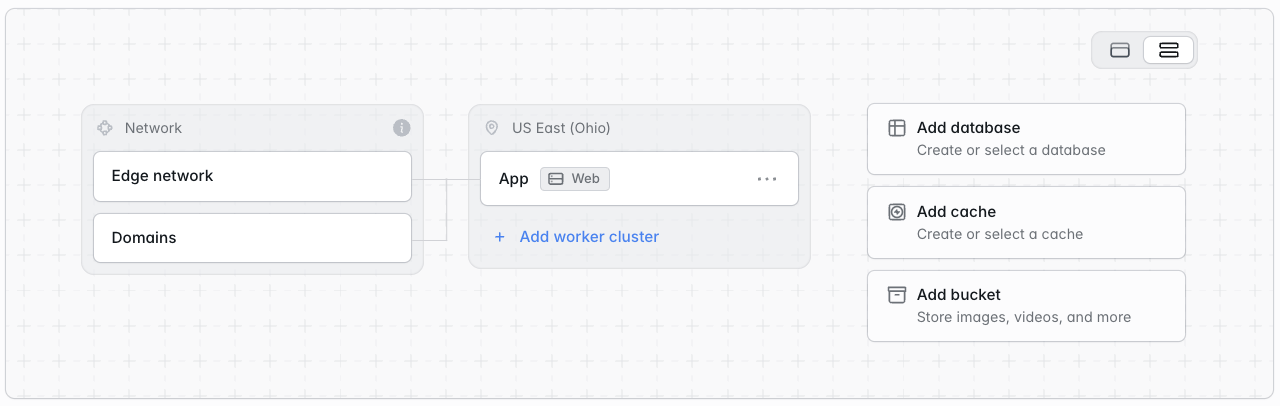
Laravel Octane
Laravel Octane is available for Laravel applications only.
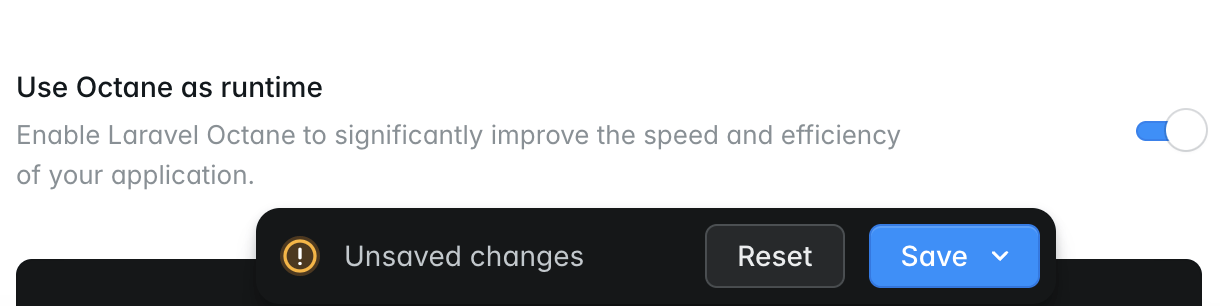
Before enabling the Laravel Octane runtime, make sure you have added Laravel Octane to your application using the Composer package manager.
Inertia SSR
Inertia SSR is available for Laravel applications only.
npm run build:ssr command instead of npm run build:
Worker clusters
Worker clusters run background processes on compute that is separate from your App cluster and web traffic. See Workers to learn how to create worker clusters and configure background processes.Autoscaling
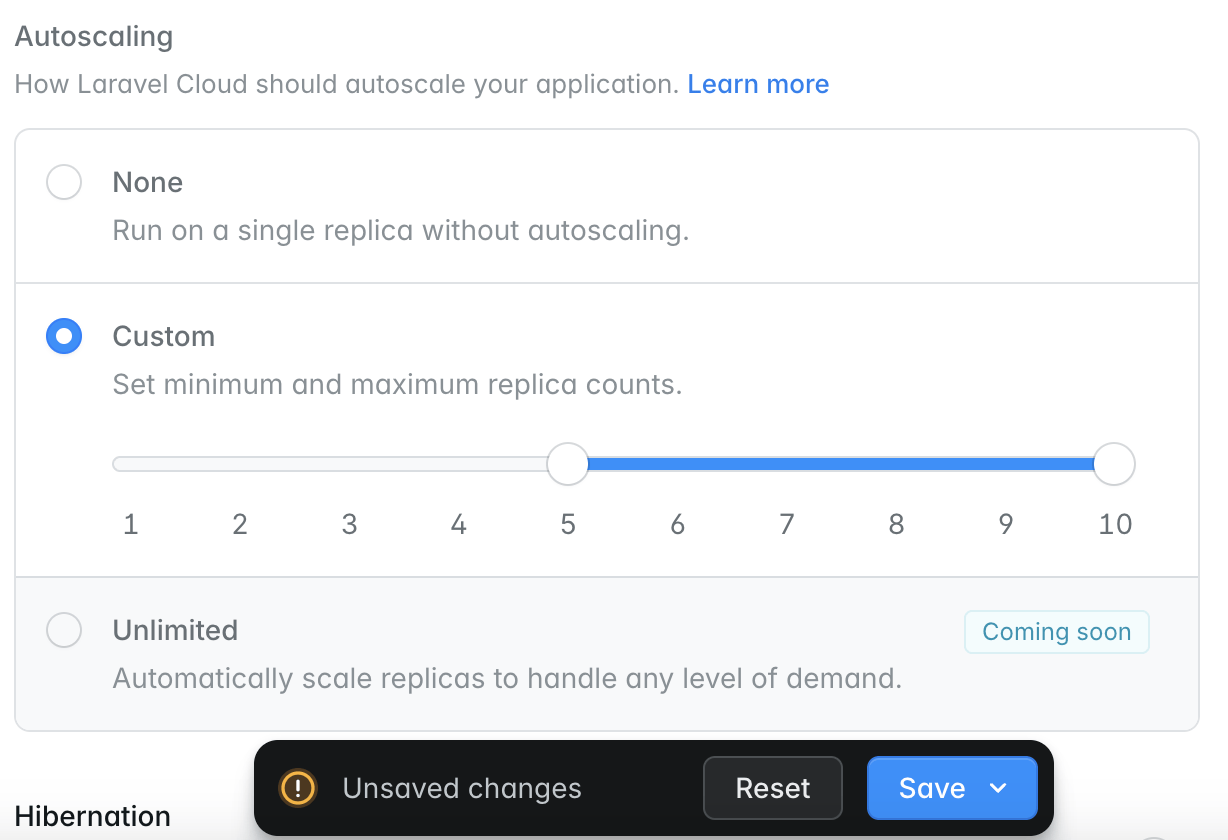
Laravel Cloud can automatically scale the compute resources attached to your environment based on demand, CPU usage, and memory usage. To configure your environment’s autoscaling strategy, click your environment’s App or Worker compute cluster on the infrastructure canvas dashboard. Then, select the autoscaling strategy that fits your environment. Laravel Cloud supports three autoscaling strategies:- None: run your App or Worker compute on a single instance without autoscaling.
- Custom: automatically scale your App or Worker compute clusters up and down horizontally within a specified minimum and maximum replica range.
- Unlimited: automatically scale your App or Worker compute clusters up and down indefinitely based on demand.
HTTP traffic autoscaling
For App clusters, Laravel Cloud automatically scales HTTP applications based on real-time traffic pressure in addition to your configured CPU and memory thresholds. Laravel Cloud scales based on whichever limit is reached first. Laravel Cloud’s ingress layer continuously tracks active requests currently being processed by your application and adds replicas when demand exceeds available capacity. For PHP applications, each replica’s capacity is based on the amount of memory allocated to the application. Laravel Cloud estimates that each PHP worker uses approximately 30 MB of memory and can process one request at a time:Scheduled autoscaling
Scheduled autoscaling is available on the Business and Enterprise plans. It lets you define time-based overrides for clusters that scale between a minimum and maximum number of replicas. Overrides are useful for predictable traffic patterns like product launches, marketing campaigns, or business hours. Each scheduled override temporarily changes your cluster’s:- minimum replicas
- maximum replicas
- CPU threshold
- memory threshold
Laravel Cloud applies scheduled autoscaling changes automatically around the configured boundary times, typically within about one minute.
Scheduled autoscaling limitations
- Scheduled autoscaling is available only for clusters that scale between a defined minimum and maximum replica count.
- Recurring schedules must start and end on the same day. If you need an overnight window, create two schedules.
- One-time schedules run once, then automatically stop applying after their scheduled window ends.
Compute classes
Laravel Cloud applications run on the latest generation of AWS Graviton EC2 servers, which have an optimized cost-to-performance ratio. Laravel Cloud offers two classes of compute:Flex
Lightweight and cost-efficient. A good fit for development environments or applications that need the flexibility to support periodic traffic bursts.
Pro
Larger compute sizes designed for sustained, heavy utilization. Best for large-scale, mission-critical production applications.
Compute metrics
To view your environment’s compute metrics, open the Metrics tab of your environment. The graphs average CPU and memory usage for your environment’s App and Worker clusters across all replicas.Scale-to-Zero
Your environment can scale to zero when it does not receive an inbound network request to your application (port 8080) within a specified time limit, known as the sleep timeout. While an environment is sleeping, Laravel Cloud does not charge you for its compute until it wakes again. New Flex compute sizes wake in under 500 milliseconds when the environment receives a new inbound request, which is fast enough that your application’s users will not notice. Legacy Flex sizes use the previous wake behavior and typically take 5-20 seconds to wake. To enable Scale-to-Zero, click your environment’s App cluster on the infrastructure canvas dashboard and enable the Scale to Zero toggle. Then, save the compute cluster settings and re-deploy the environment.Scheduled tasks and queues
For Laravel applications, a sleeping environment wakes automatically to run scheduled tasks. For non-Laravel applications, Cloud Scheduler wakes the App cluster to run commands on the schedules you configure in Cloud. Queued jobs do not wake a sleeping environment. If your jobs must keep processing while your environment sleeps, use managed queues or a worker cluster that stays awake. If you use Symfony’s Scheduler component instead of Cloud Scheduler, run it on an always-awake worker cluster. When your environment wakes for a scheduled task or a manual wake interval, it stays awake for the duration of the sleep timeout. Any inbound request resets this timer. Make sure your scheduled tasks and background processes can complete within that window.If a queued job is still running when the sleep timeout elapses, the App cluster will stop and the job may be interrupted. We recommend managed queues for queued jobs so that Scale-to-Zero never interrupts background processing.
Manual wake interval
You may configure a manual wake interval to wake an environment on a fixed schedule, which is useful for background processes like self-managedqueue:work processes that must run periodically. As with scheduled tasks, a wake interval shorter than your sleep timeout can keep the environment awake continuously.
Worker clusters
Each Worker cluster can either stay awake at all times or follow the App cluster and sleep alongside it. You may configure this behavior within the Worker cluster’s settings.Limitations
- Only Flex compute sizes can scale to zero.
- Sub-500 millisecond wake times apply to new Flex sizes only. Legacy Flex sizes keep their previous wake behavior.
Maintenance mode
This section applies to Laravel applications. Symfony applications handle maintenance mode differently.
file driver for maintenance mode. If you run php artisan down from the Commands tab, the maintenance mode state will not persist across deployments or apply to multiple replicas.
To keep the maintenance mode state consistent across your application and its replicas, set the maintenance mode driver to cache and use either a database or Laravel Valkey (Redis-compatible) as the maintenance mode state backend in your environment variables.